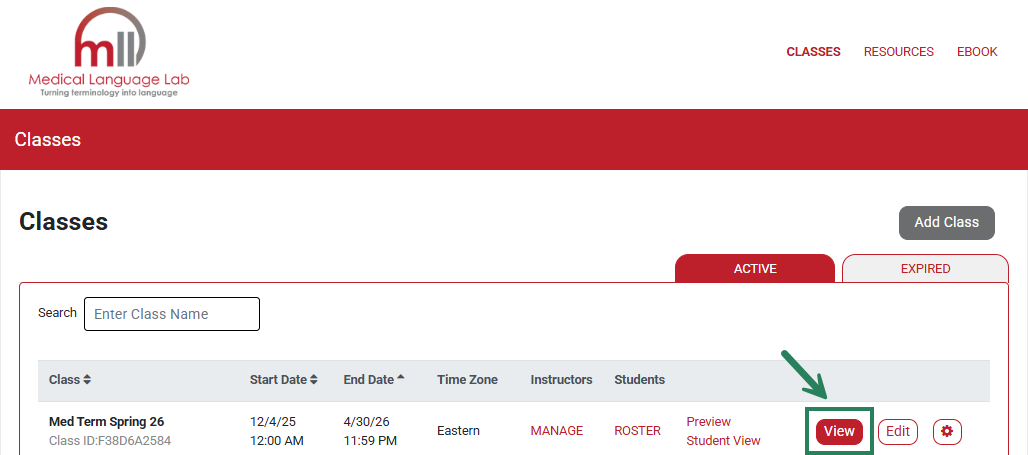
To view the dashboard for your class, first navigate to your Classes Page, then select the "View" button on the line with the name of your class.
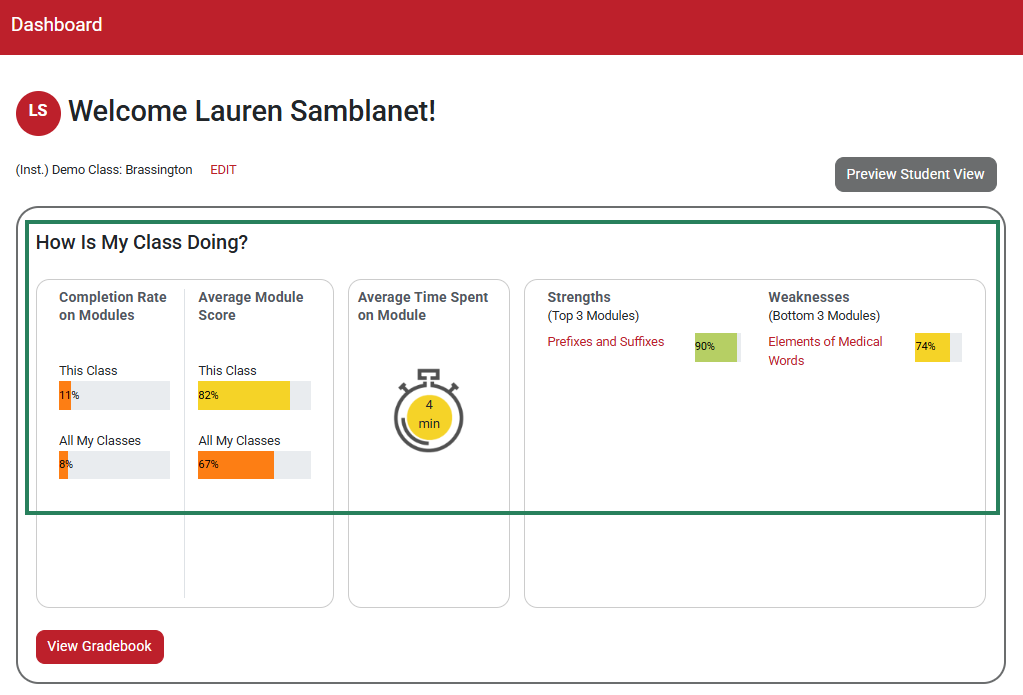
The Dashboard view provides at-a-glance, actionable analytics for instructors. The How Is My Class Doing section shows class performance indicators including participation rate, average assessment score, average time spent, and top module types. The Top Module Type section ranks your class’s overall performance on the different types of modules across all chapters.
Assignments View
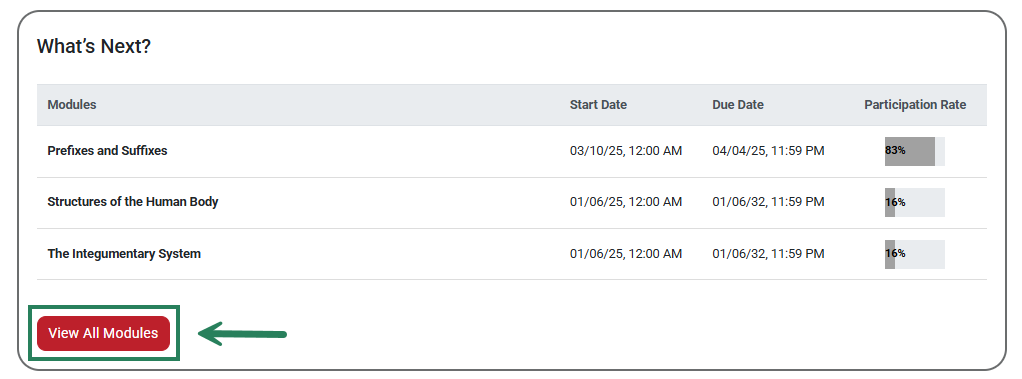
On your Dashboard page, the What's Next panel provides a glimpse of current and upcoming assignments (3 at a time) showing what percentage of students has begun to work on the assigned module. To access the full list of assignments with start/due dates and participation rates, select the View All Modules button, or click the Assignments tab at the top right of the page.
Here you can preview all the module assignments that your students will complete. The Due Date column shows each chapter's due date (1) and the Percent Complete column shows participation rates for that chapter (2).
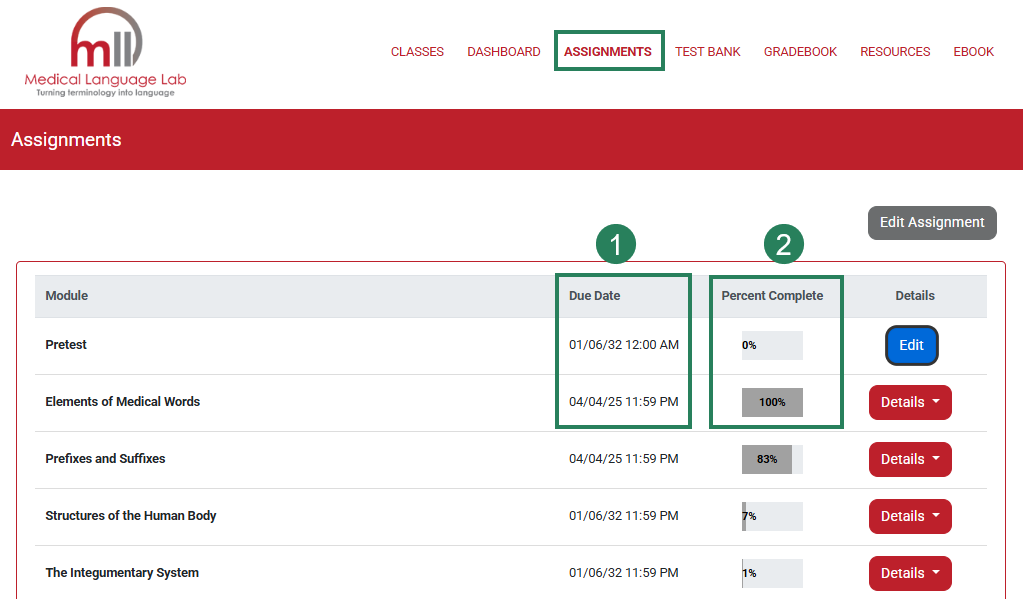
Click "Details" next to a module to view its contents.
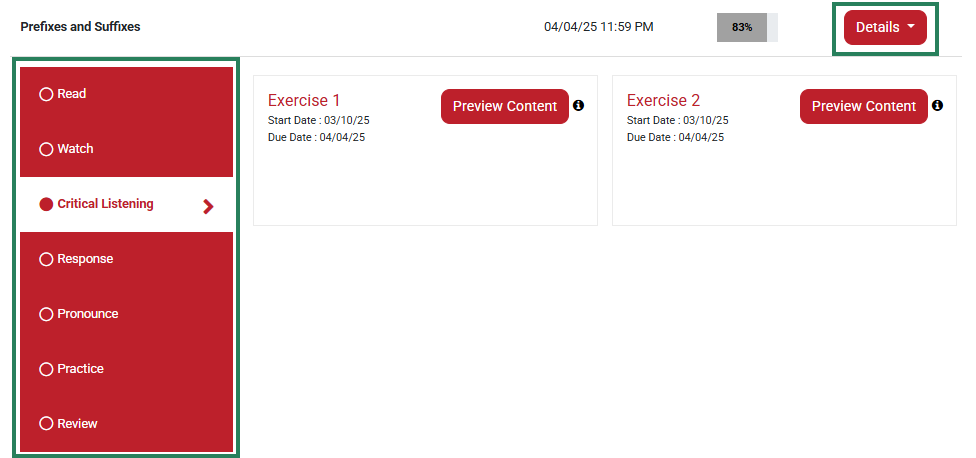
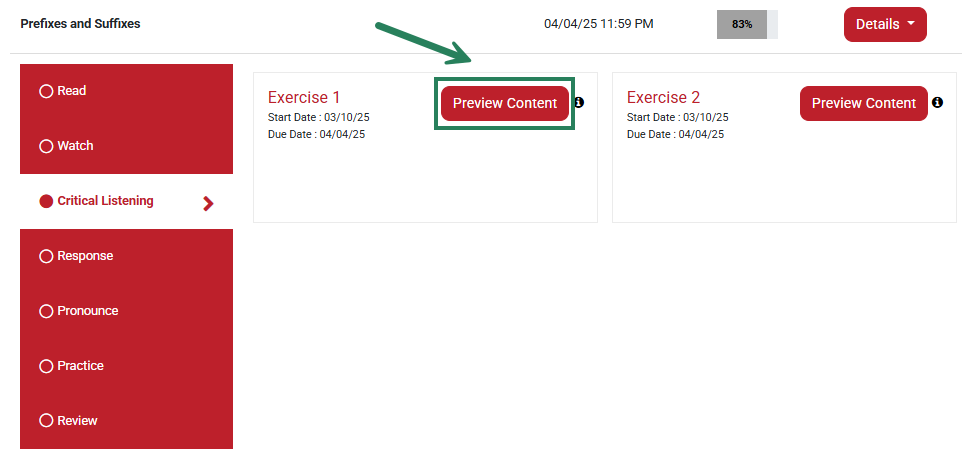
To open an activity to view its contents, click Preview Content.
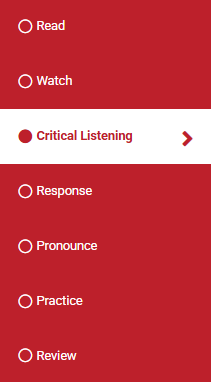
Each module in Medical Language Lab contains multiple activities, which can be customized when setting up or editing a class. Depending on which text you are using, you may see different activity types available.
Study Guide
You can return to your Dashboard at any time by clicking Dashboard in the header.

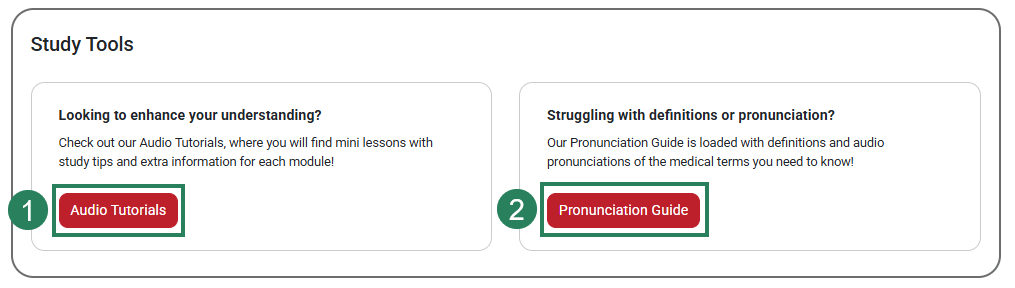
At the bottom of the Dashboard, you will see the Study Guide section. This section is also available to your students on their Dashboard. The Study Guide includes the Audio Tutorials, which includes all available Audio Tutorials for this textbook (1), and the Pronunciation Guide, which includes the audio pronunciation and definitions for the medical terms (2).