You are using an unsupported browser. Please update your browser to the latest version on or before July 31, 2020.
close
You are viewing the article in preview mode. It is not live at the moment.
Home > Medical Language Lab > Student > Student: Complete Assignments: Medical Language Lab
Student: Complete Assignments: Medical Language Lab
print icon


Access Exercises

Each assignment module in Medical Language Lab contains multiple exercises that are sorted into activity types. The activity types and exercises within each module can be customized by your instructor and may vary depending on the text. You will potentially see the following activity types: Read, Watch, Critical Listening, Response, Generation, Pronounce, Practice, and Review. 


Don’t forget to review the Due Date for each Exercise. Work submitted after the due date will not be recorded in your instructor’s Gradebook, unless your instructor opts to accept late submissions.
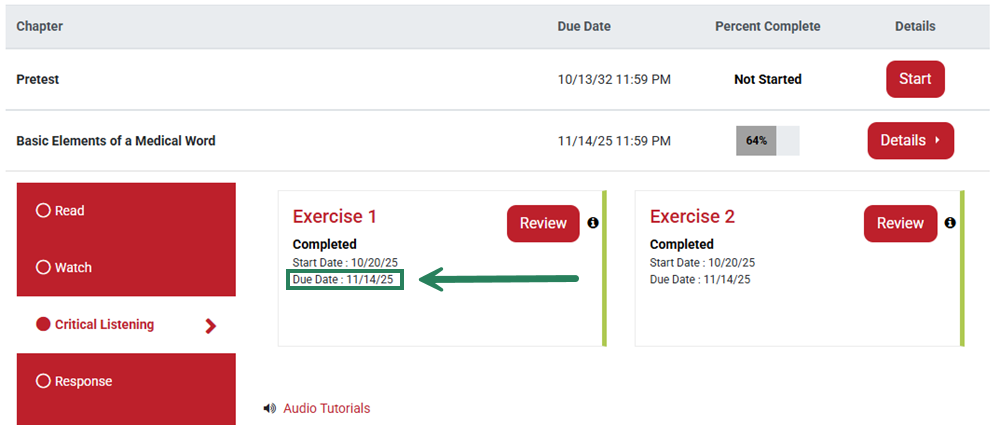
 

The "Basic Elements of a Medical Word" dropdown menu is open, and the "Critical Listening" activity section is selected. The due date under Exercise 1 is highlighted with a bounding box and an arrow.


After completing each Exercise, check the Exercise Status and Grade fields to confirm that your work has been submitted.
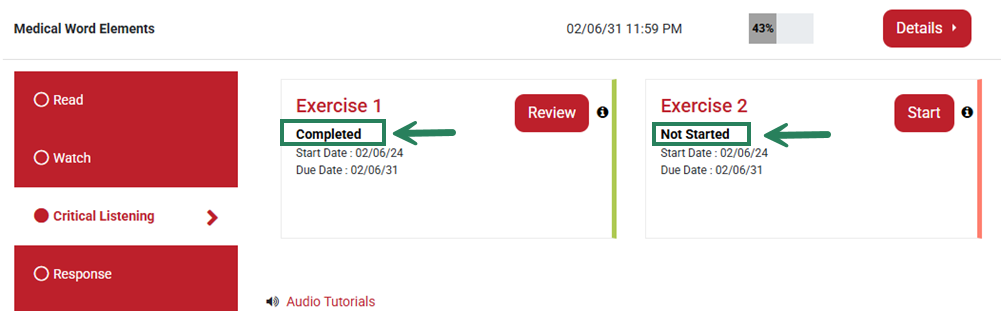
 

In the "Critical Listening" activity tab, two exercises are shown. Below Exercise 1, the status "Completed" is highlighted with a bounding box. Below Exercise 2, the status "Not Started" is highlighted with a bounding box.


Activity Types


Critical Listening

Critical Listening Exercises begin with an audio recording. You'll first listen to a Critical Listening Exercise's audio recording (1) to familiarize yourself with its content, then you'll click the "Continue to Questions" button (2) to answer the questions associated with the audio.
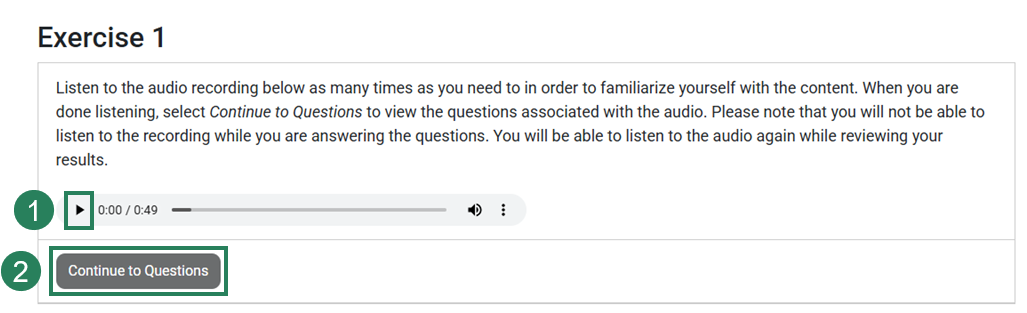
 

A Critical Listening exercise is open to reveal the instructions. Below the instructions, there is an audio clip with the "Play" symbol highlighted and labeled with the number 1. At the bottom, the "Continue to Questions" button is labeled with the number 2.

After you click "Continue to Questions," you will answer a series of multiple-choice questions based on the audio recording.
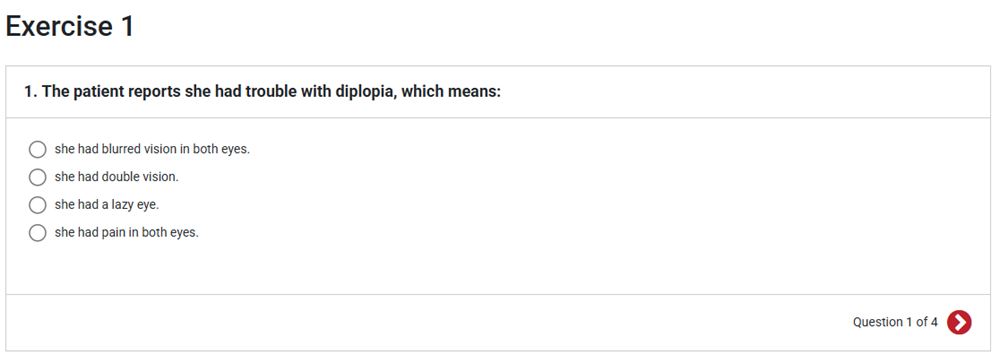
 

A Critical Listening question is shown. The question has four multiple choice options.


Response

Response Exercises are also based on an audio recording prompt. Some Response Exercises, however, will require you to record your own voice as the submission. Listen to the audio recording (1) to familiarize yourself with the content, then click the "Continue to Questions" button (2) to answer the questions associated with the audio recording.
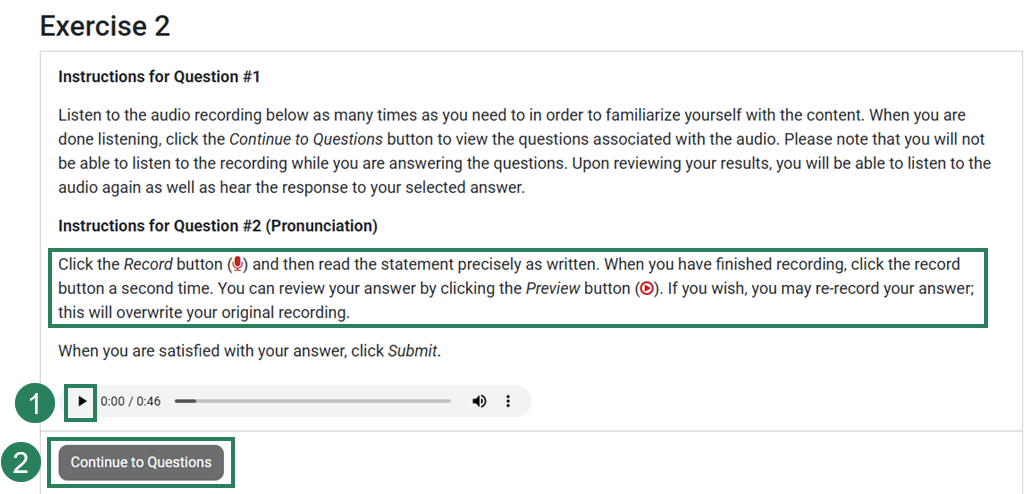
 

A Response activity is opened to reveal the instructions for two question types. The instructions for Question 1 describe a multiple choice-style question. The instructions for Question 2 describe a question in which the student is asked to record their response. The instructions for Question 2 are highlighted with a bounding box. Below that, the play button next to the audio and the "Continue to Questions" buttons are highlighted and labeled with numbers 1 and 2 respectively.


In the case of a Pronunciation Question, click the "Record" button (1) and then read the statement precisely as written, to be be scored automatically based upon how well you pronounce the statement. You'll be able to review your recorded answer by clicking the "Preview" button, and may re-record your answer if you wish.


Once you are satisfied with your recording, click "Continue" (2). You will need either an internal or external microphone to complete these exercises. If you are asked to grant the system access, click "Allow."
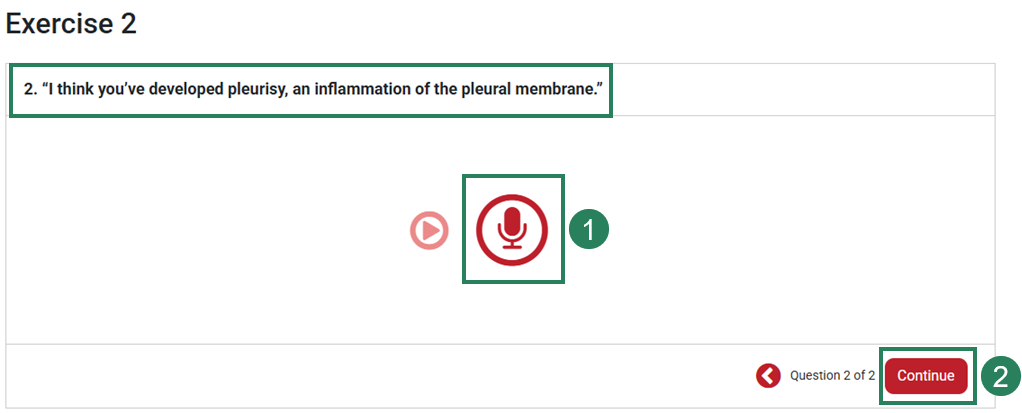
 

Exercise 2 of a Response question is shown, with the question at the top and a record button below it, which is highlighted and labeled with the number 1. At the bottom, the "Continue" button is labeled with the number 2.


Generation

Generation Exercises are graded by your instructor, and are comprised of two types: Audio and Text.


Audio Generation

These exercises ask you to record yourself saying a sentence or two using the appropriate medical terminology. You will need either an internal or external microphone to complete these exercises. If you are asked to grant the system access, click "Allow." 


Then, click the Record https://medicallanguagelab.fadavis.com/Content/images/recordIcon.png button (1). When you are finished speaking, click the https://medicallanguagelab.fadavis.com/Content/images/stopIcon.png button again to stop recording.

Click "Preview" (2) to play back your recording, and "Continue" (3) once completed. Or, to start over, click "Reset."


An Audio Generation activity is opened. In includes a question at the top and a microphone button, which is highlghted and labeled number 1. Below that, a button that says "Preview" is labeled number 2, and at the bottom, the "Continue" button is labeled number 3.

Note: Smartphones generally do not support MLL’s Audio Generation activities. Please also avoid using Internet Explorer. Desktop and laptop computers with Mac OS or Windows 7,8,10 are generally supported, with Google Chrome being the recommended browser. Chromebooks are supported. iPads may be supported with the latest versions of iOS.


When recording your responses, note the visual cue below. If the sound waves are not appearing on your screen, your audio is not being captured and you may need to try a different device.


Screenshot of an Audio Generation activity, with the audio recording box highlighted with a bounding box. Multicolored sound waves in the recording box indicate that sound is being recorded.


Text Generation


When completing a Text Generation Exercise, you are asked to write a sentence or two using medical terminology. Type in your answer and then click "Submit."


Screenshot of Medical Language Lab Text Generation exercise, with a question at the top and a space to type in the answer.


Remember that Generation Exercises are not graded automatically, so you will not see a grade in your Gradebook for these exercises until your instructor has evaluated your submission and assigned a grade.


The Gradebook is open to show the activities within a module. The "Details" dropdown button next to the "Generation" section is highlighted with a bounding box, and below that the two completed Generation activities are shown without a grade.


Pronounce

Pronounce will include exercises for you to practice the pronunciation of medical terms and statements. Select the microphone icon to record. At the end of the assignment, you will receive phonemic feedback.  
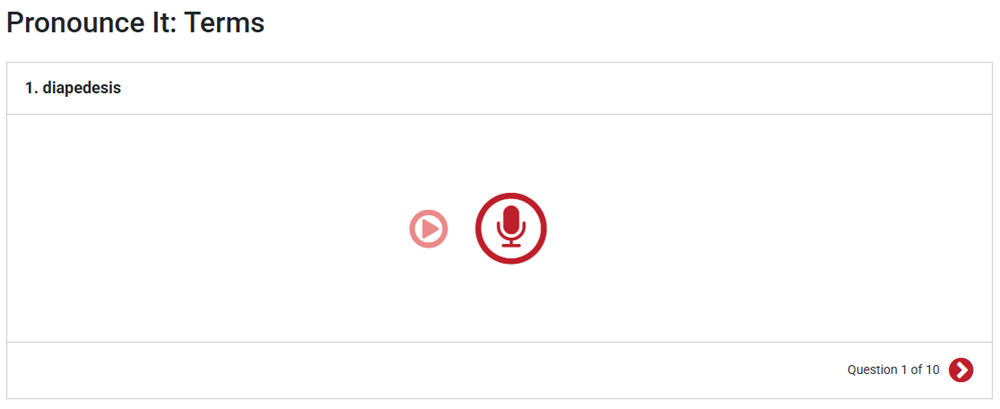
 

A "Pronounce" activity is opened to the first question. At the top, a term is listed. Below that there is a microphone for the student to record their answer, and at the bottom there is an arrow to move through the 10 Pronounce questions.


Practice

Practice Exercises are diversified to allow for types of learning outside of reading, writing, listening, and speaking. Some may be reported to the Gradebook, while others (such as Flash Cards) are not graded.
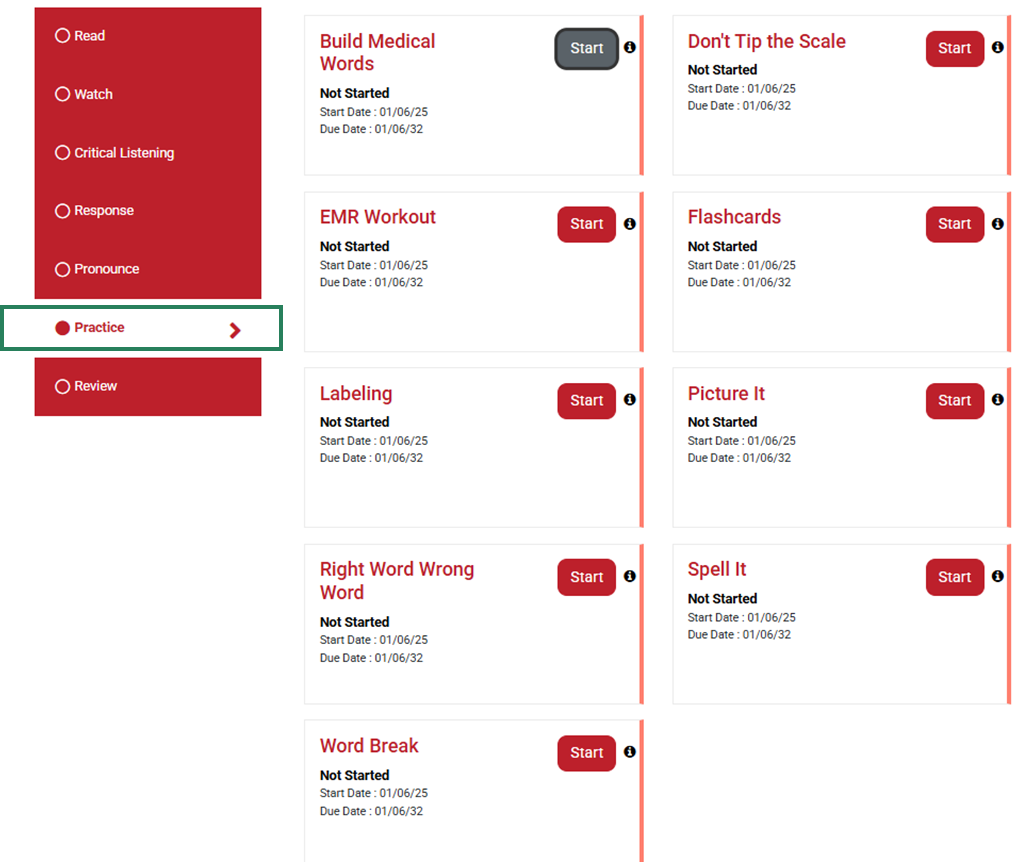
 

The "Practice" activity section is highlighted in the module dropdown list on the left. On the right, nine different practice activities are shown.


Review Assignments

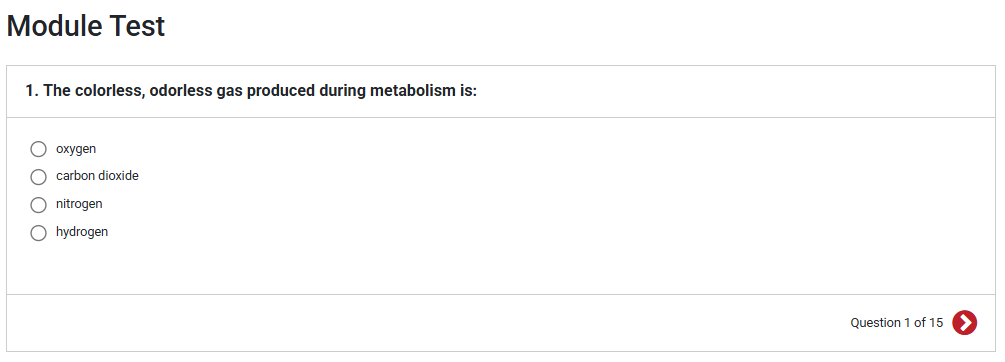
Review Assignments contain the Test at the end of each module. The Module Test is a comprehensive, multiple-choice test. Once you complete this Module Test, you will be assigned up to three additional, optional remediation opportunities based upon your performance.
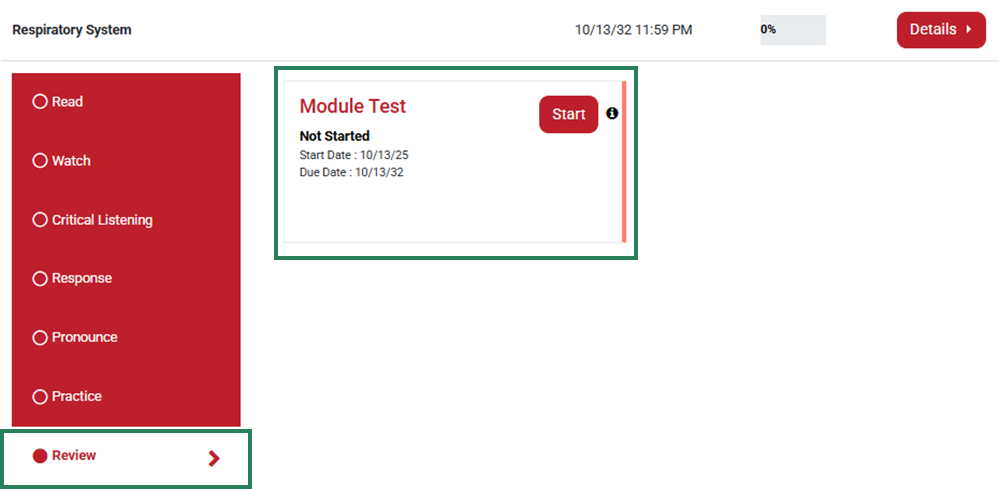
On the left, the "Review" tab under the module dropdown list is selected and highlighted with a bounding box. On the right, the assignment is shown with the status and due date, and is highlighted with a bounding box.

A multiple-choice module test question is shown.


scroll to top icon