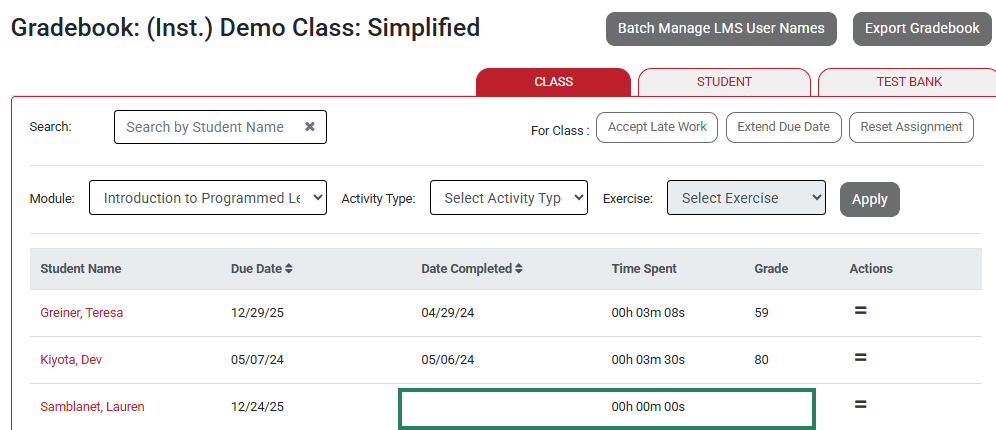
In Medical Language Lab, you can accept student's late work, extend due dates and reset assignments. To begin, click on Gradebook in the header.

Late Work
Late work, or any assignments submitted after your designated due date, will be marked in red in your Gradebook. When viewing an assignment, you may choose to allow a late submission from an individual student, or you may choose to accept late work from the entire class. To accept late work for an individual student, click the two lines in their row in the Gradebook.
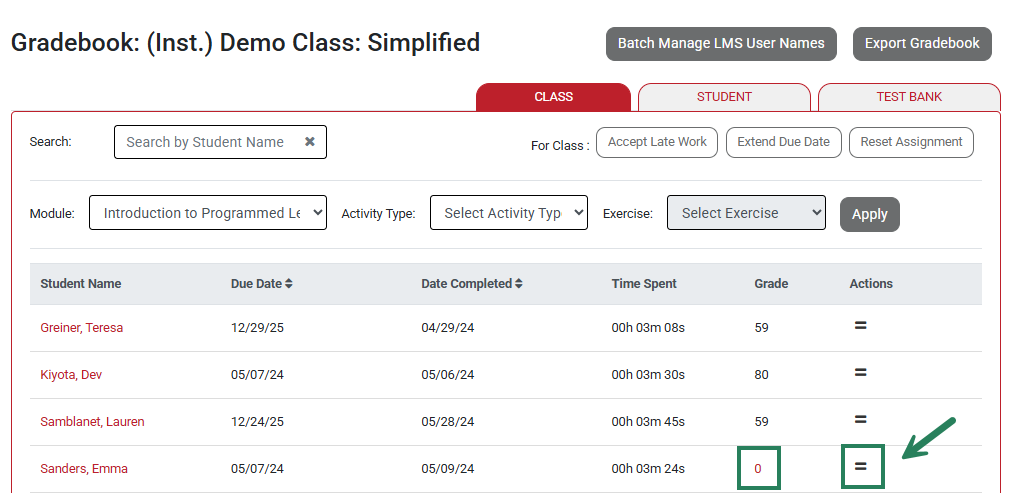
Next, click the Accept Late Work option in the drop-down that appears.

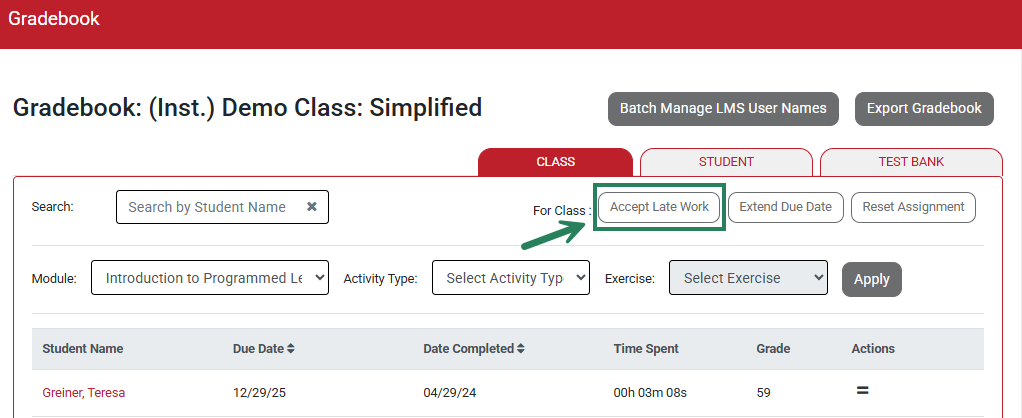
To allow late work from the whole class, click the Accept Late Work button in the For Class section.
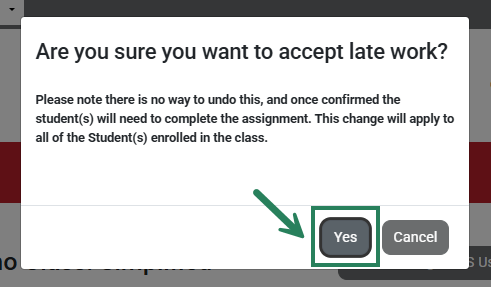
When opting to accept late work at the student or class level, please note the pop-up message that lets you know there is no way to undo accepting late work. Select Yes to accept the late work.
Late work that has been accepted will change from red to black text.

Extend Due Date
The Gradebook also gives you the option to extend a due date for an assignment. This can be done for an individual student or for all students.
To extend a due date for an individual student, click the two lines in their row in the gradebook.
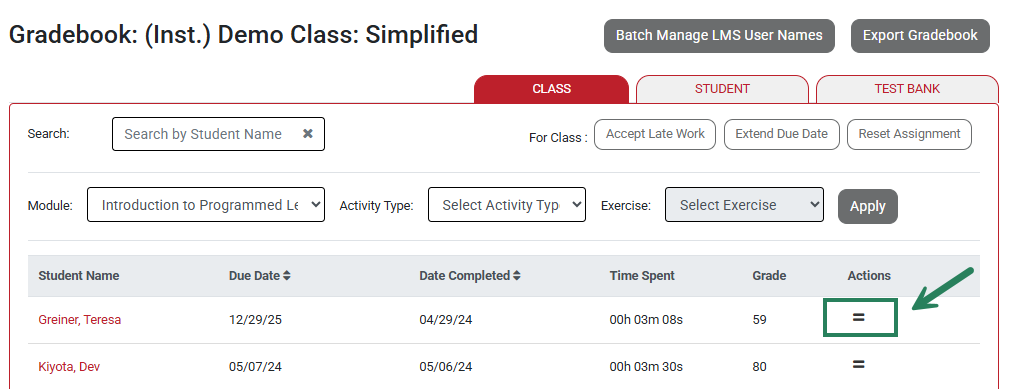
Next, click Extend Due Date.

Using the calendar that pops up, select the new due date.
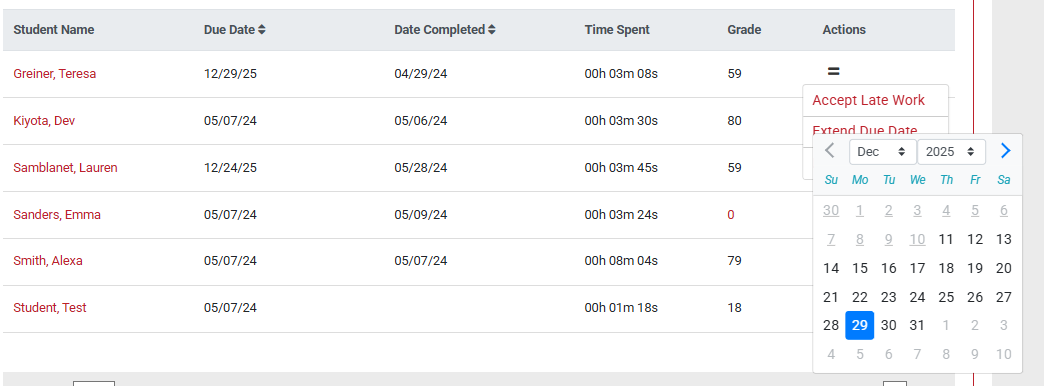
To extend a due date for the whole class, select the Extend Due Date button in the For Class section.
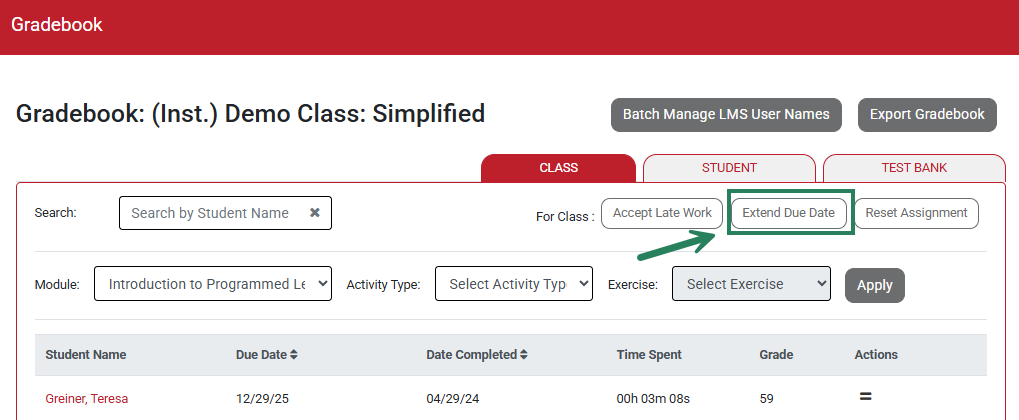
Select the new due date from the calendar window.
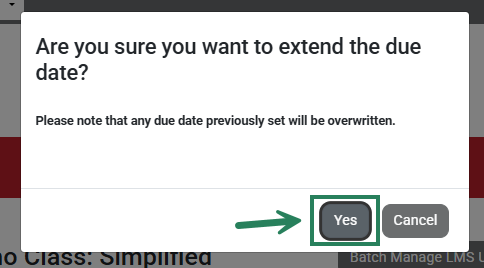
When opting to extend a due date at the student or class level, note the pop-up message that explains the previous due date will be overwritten. Click the Yes button to save the new due date.
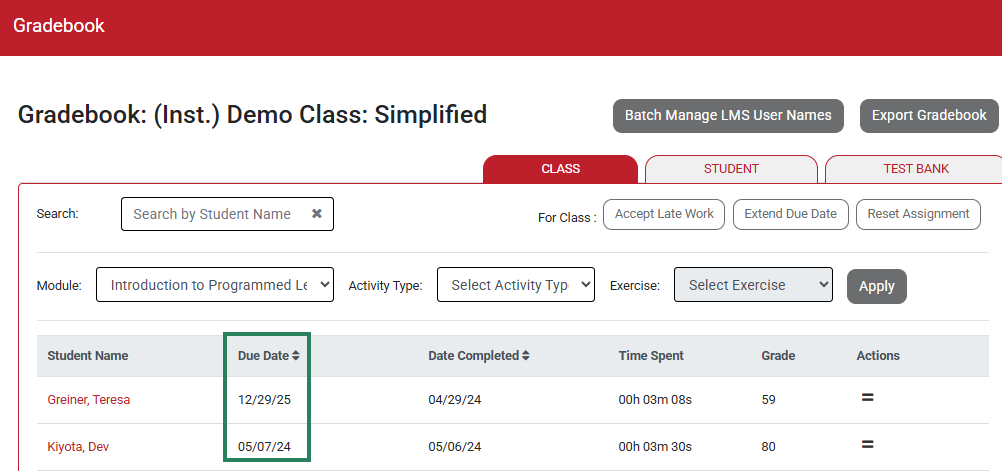
The updated due date will then be displayed in the Gradebook for that module.
Reset an Assignment
In the Gradebook, you can reset an assignment by deleting a student’s grades and enabling them to complete the assignment again for a new grade.
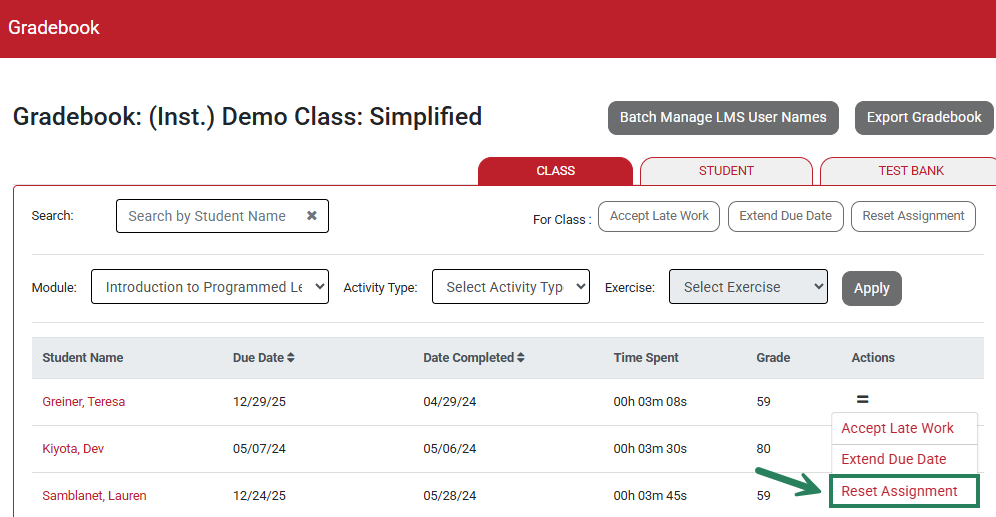
To reset an assignment for an individual student, begin by clicking the two lines in the student's row.
Next, click the Reset Assignment option.
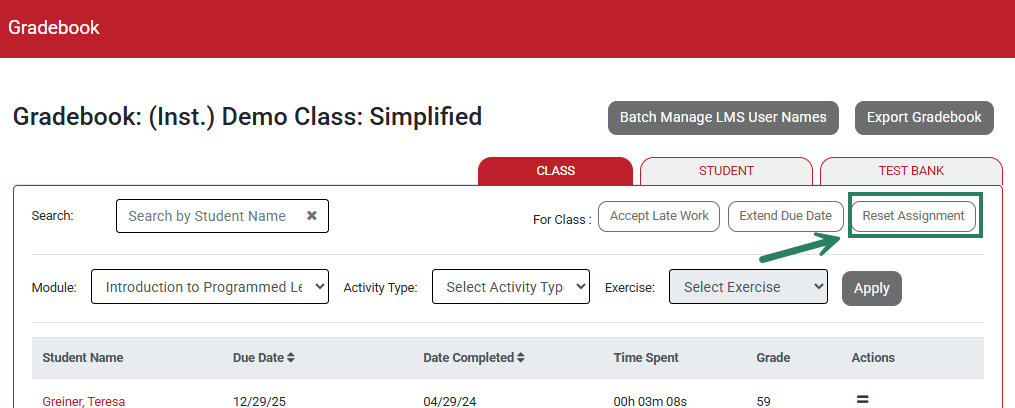
To reset an assignment for the whole class, click the Reset Assignment button in the For Class section.
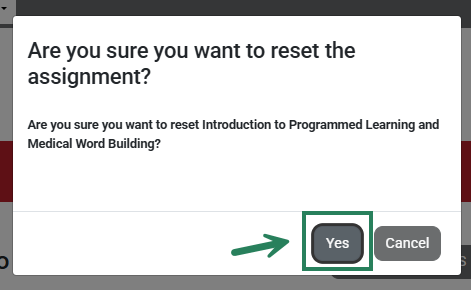
When opting to reset an assignment at the student or class level, please note the pop-up message that explains you are resetting the full module for the student or class. To reset the assignment, click the Yes button.
After clicking yes, the assignment will be reset for the student (or all students if you reset the assignment for the class). The score will remain blank until the student completes the assignment again.