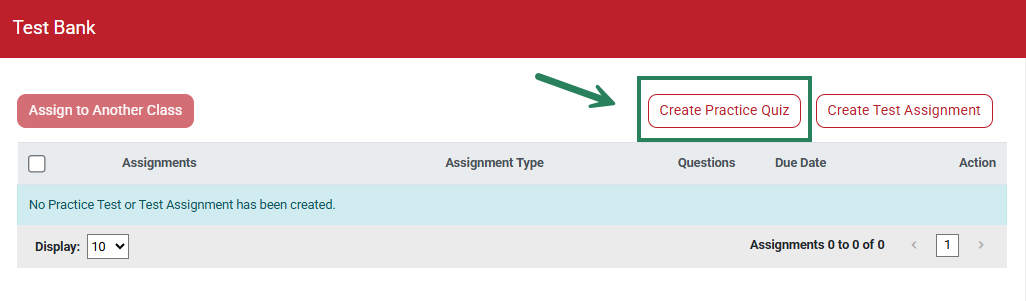
Begin by clicking Test Bank in the header.

While on the Test Bank tab, select Create Practice Quiz to create a Practice Quiz.
Enter a name for the assignment (1). Then choose to create a Quick Assignment or a Custom Assignment (2). See below for more information on the Quick and Custom Assignments.

Quick Assignment allows you to choose the number of questions (5-25) to be randomly selected from particular chapters. Use the drop-down menus to select the chapters you'd like the quiz to include and how many questions you'd like the quiz to be.
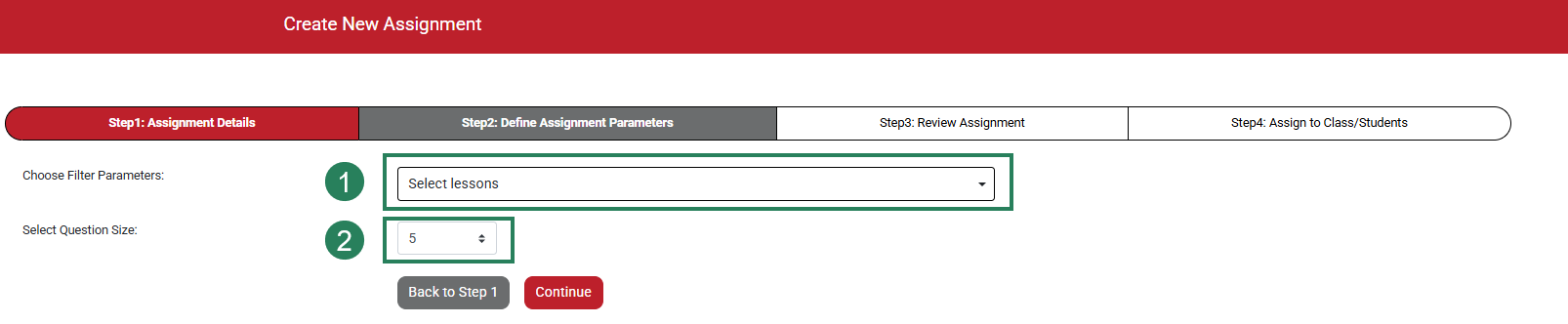
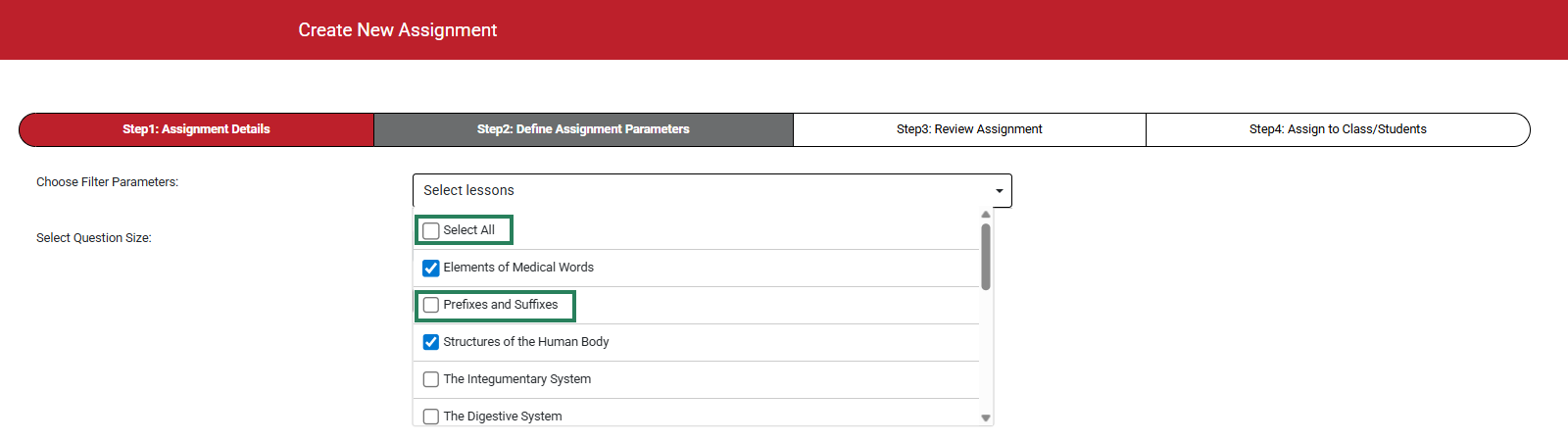
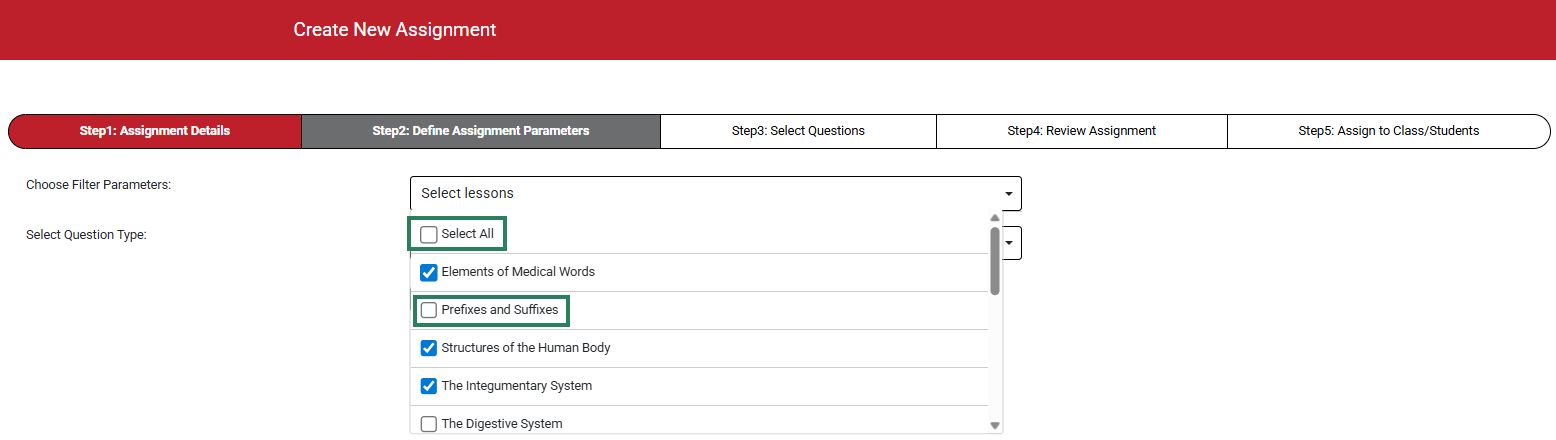
Use the checkboxes to select the chapters.
Select between 5 and 25 questions.
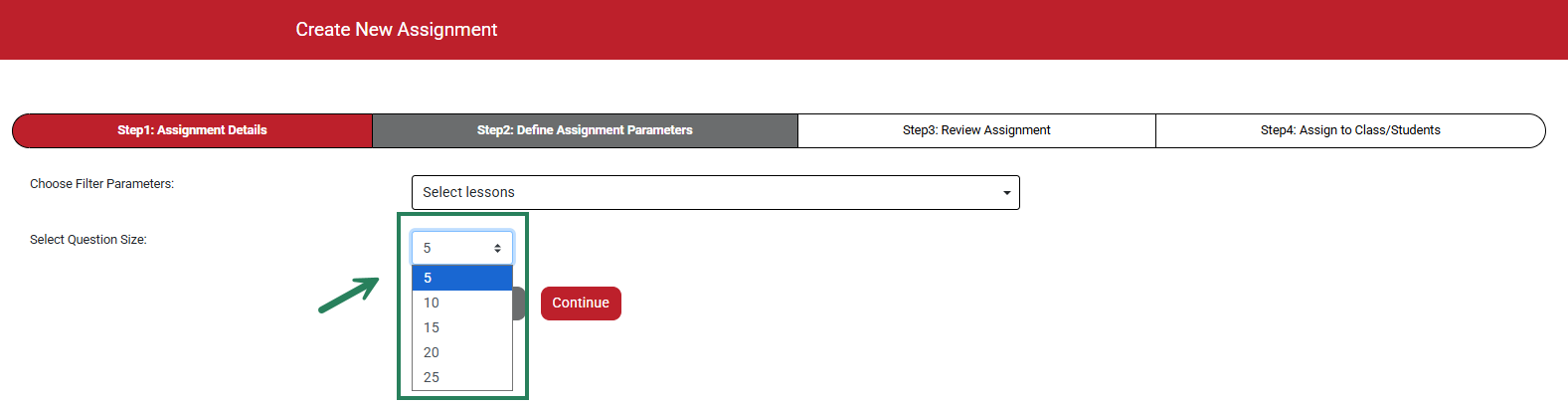
Once you've made your selections, click the Continue button.
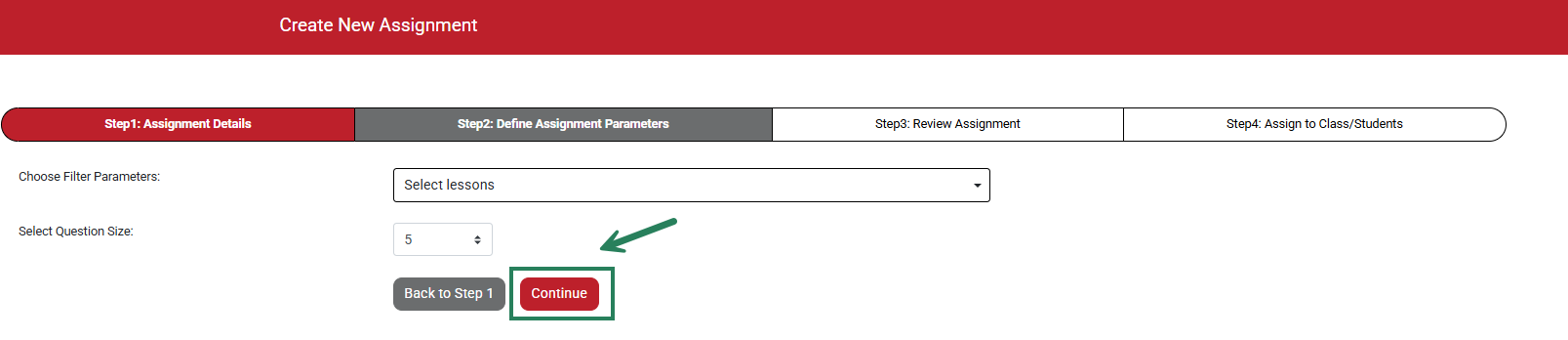
Custom Assignments allow you to select each individual question you’d like to include. When creating a Custom Assignment, you can select lessons (chapters), and question types.
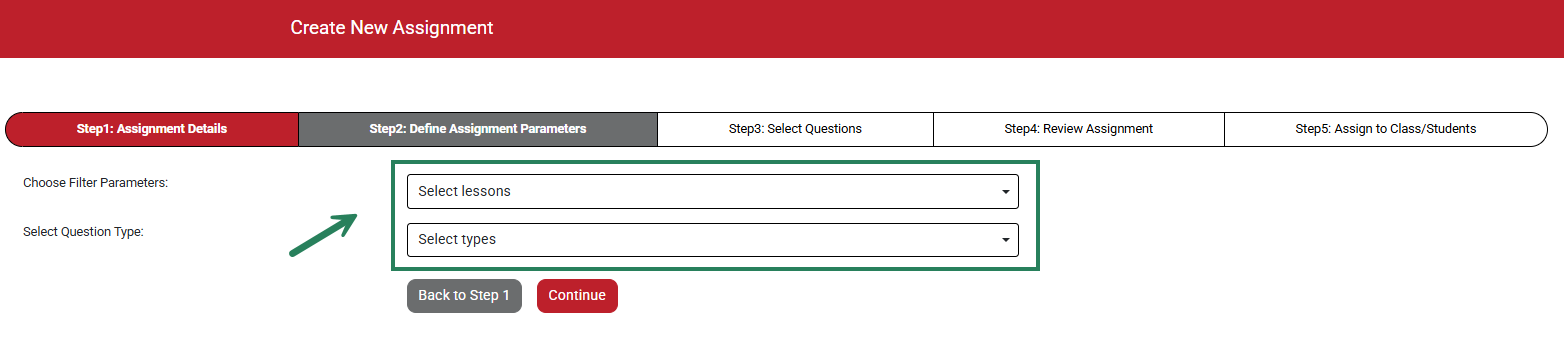
To select lessons, use the drop-down and the checkboxes to chose which chapters to include.
To select question types, use the drop-down and checkboxes to chose the question types.
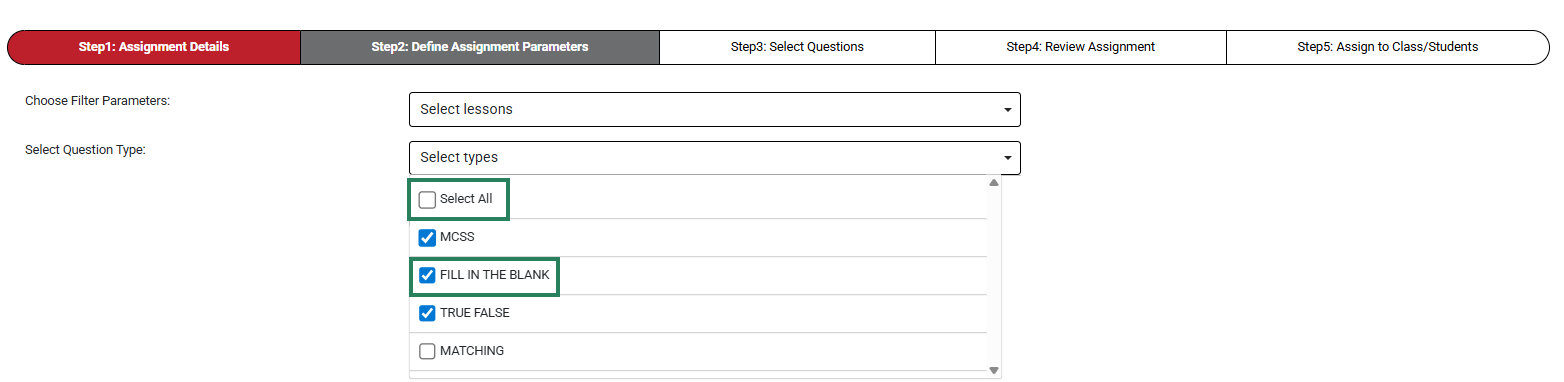
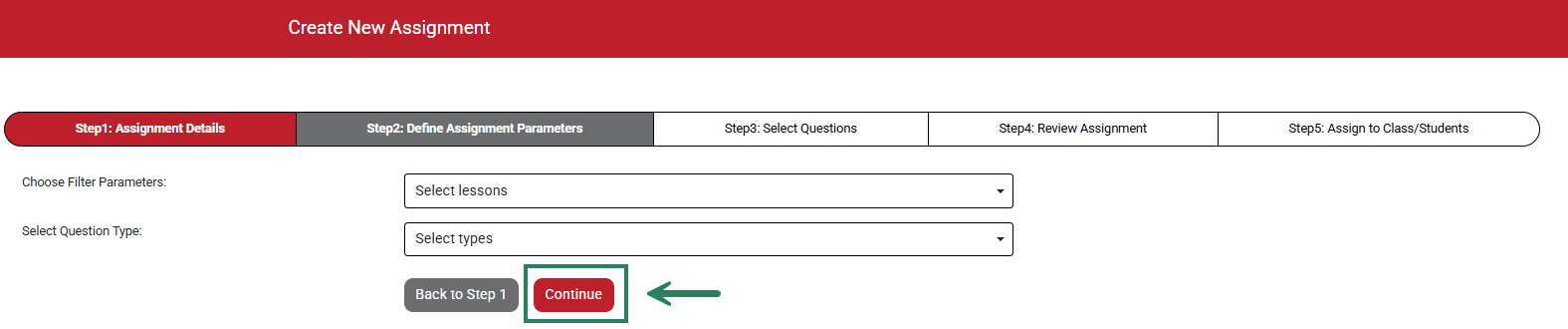
Once you've made your selections, click the Continue button.
In Custom Assignment mode, use the Search Questions bar (1) to focus on particular content and use the Select checkboxes (2) to the left of questions to include them in the assignment. Click View Details to view the question in detail and answers (3). After selecting your filter parameters or questions, click Continue (4).

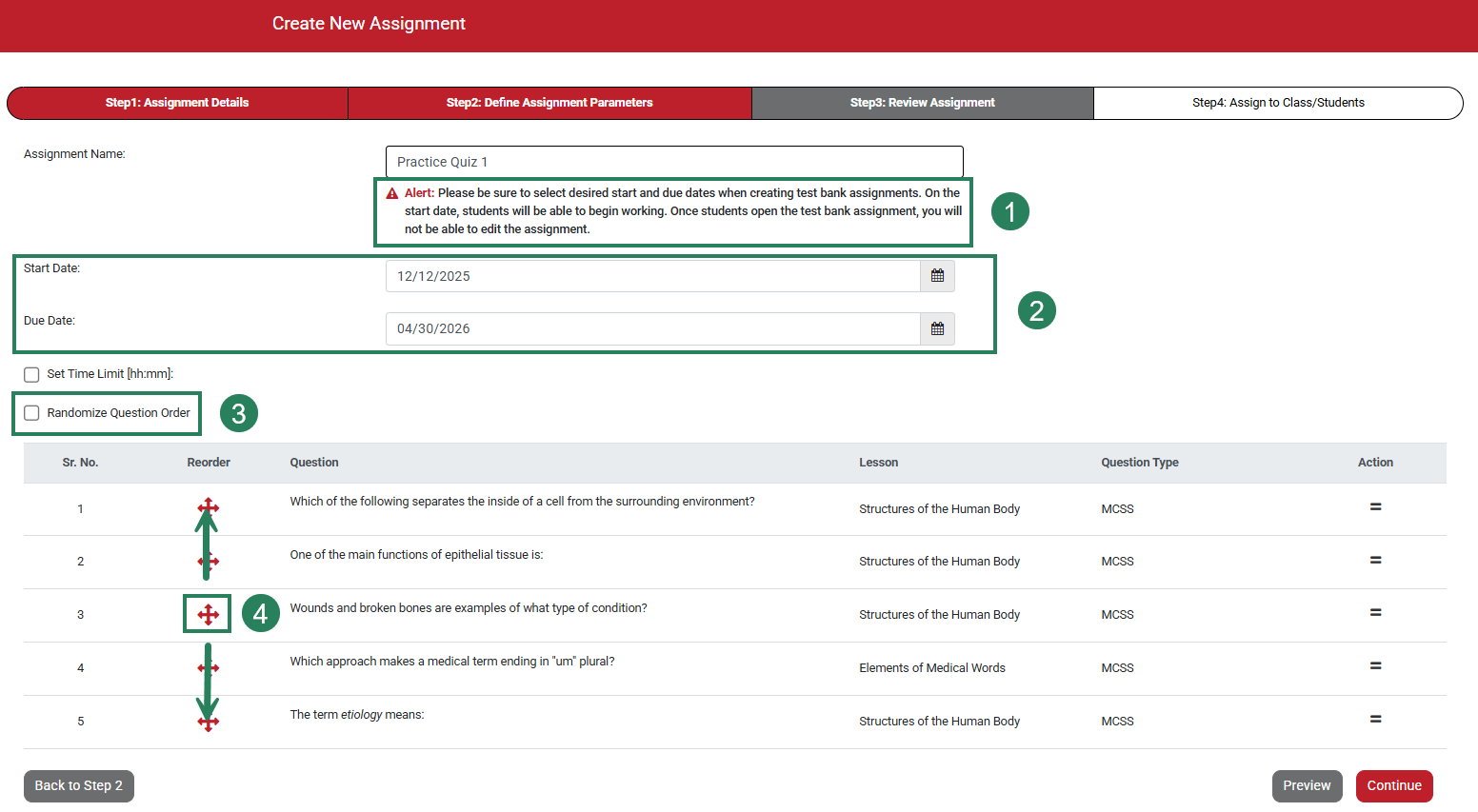
For both Quick and Custom Assignments, once you have selected your parameters, you will be taken to the Review Assignment page. Here, you can customize the assignment. Please note that once the students open the Practice Quiz Assignment, you will be unable to edit the assignment (1). Choose your start and end dates using the calendar icons (2). You can choose to randomize the question order (3) or you can order the questions manually, using the red arrows to drag and drop the questions into the order you'd like (4).
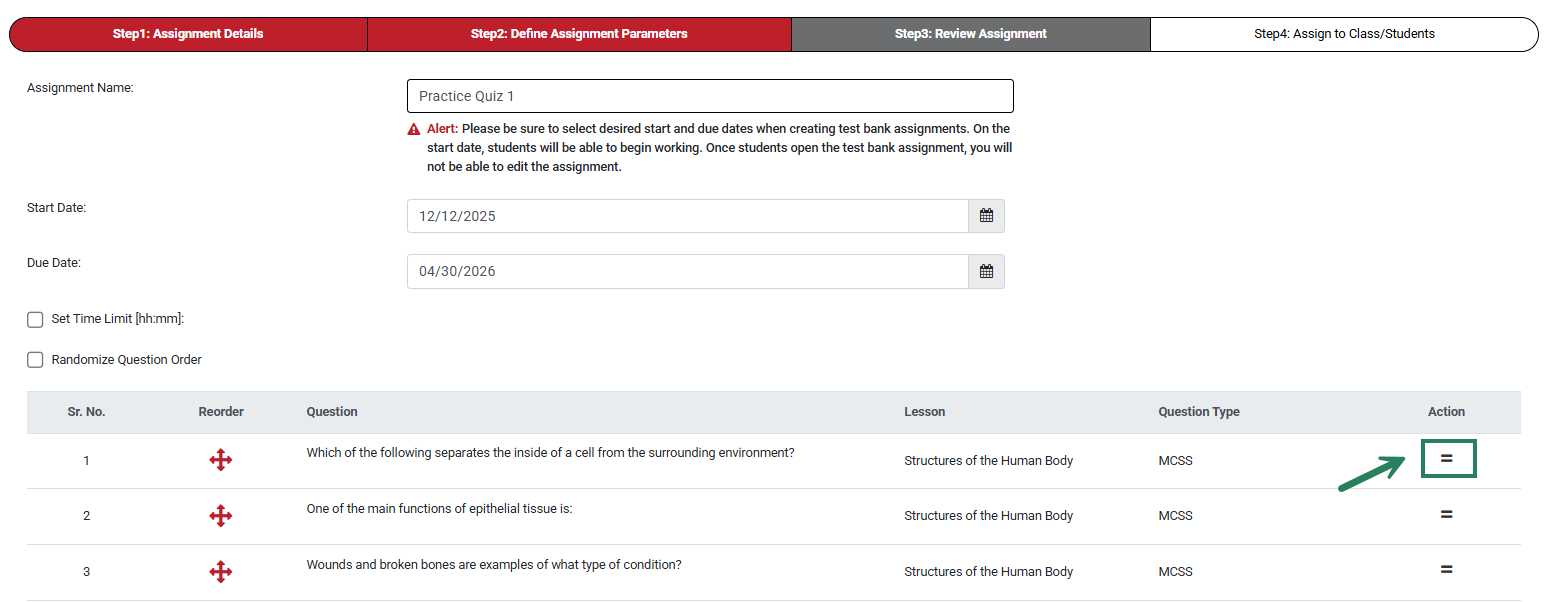
To view more details about a question or to replace or remove a question, click the two lines on the right of a question's row.
To see the full question, answer options and answer, click View Details.

You can replace a question on the quiz with a different question by clicking Replace (1). Alternatively, you can remove a question without adding a question in its place by clicking Remove (2).

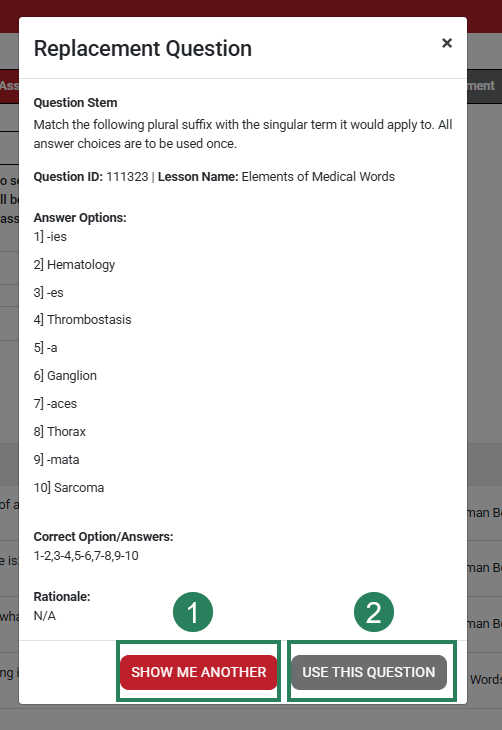
If you click Replace, you will see another question. You can keep clicking the Show Me Another button until you find a question you like. When you find your preferred question, click the Use This Question button and the new question will appear in your assignment.
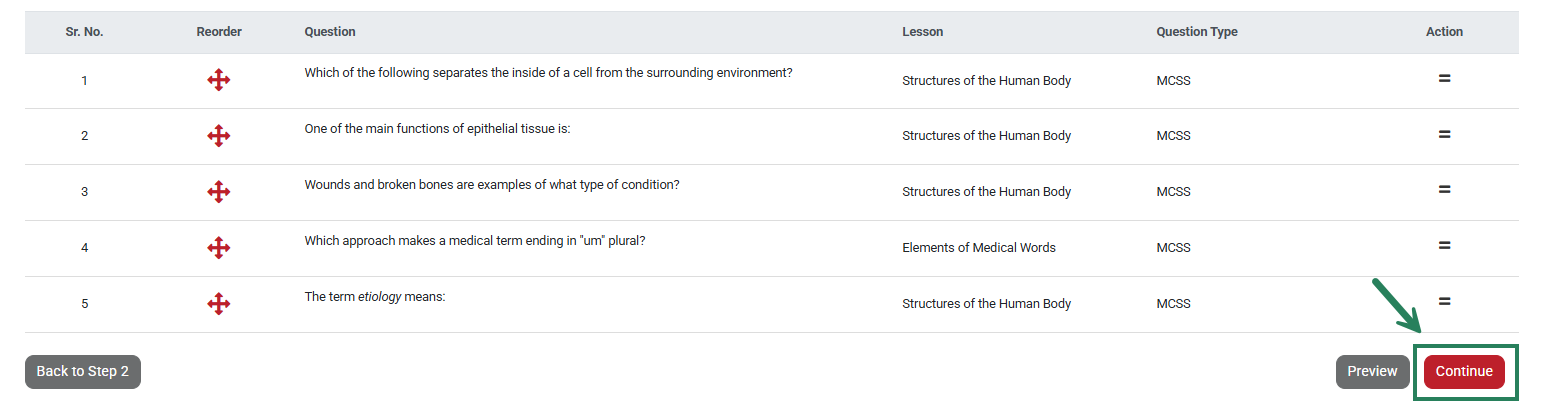
After you have made your selections, click the Continue button to proceed to Assign to Class/Students.
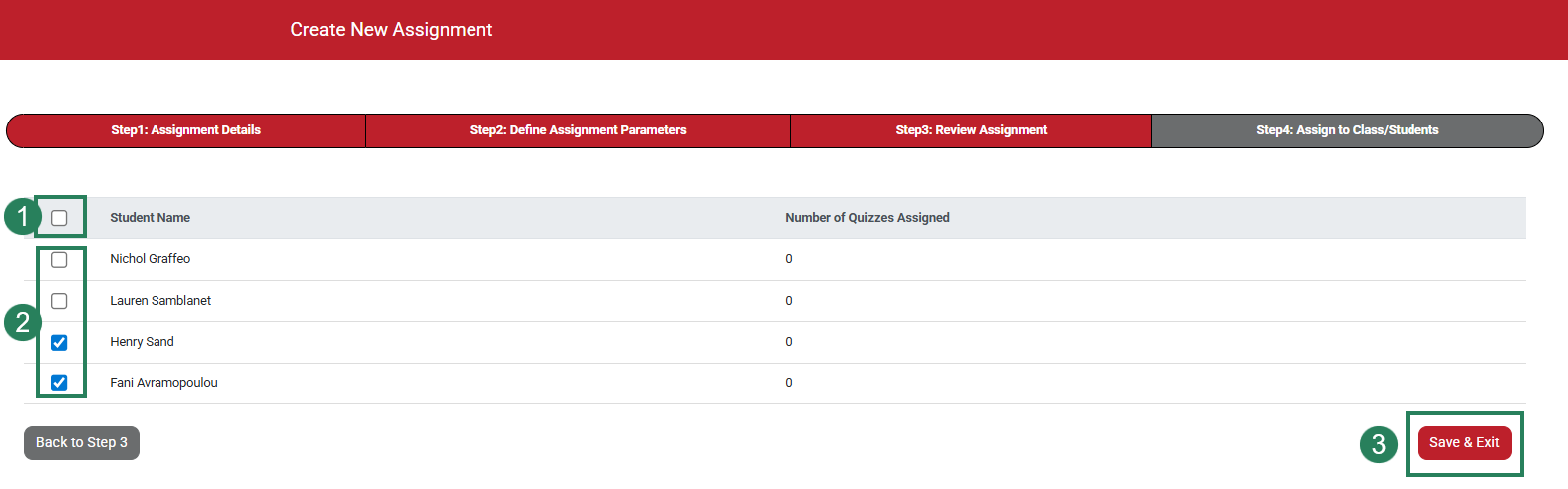
Here you can Assign the Practice Quiz to the entire class using the checkbox to the left of Student Name (1) or to individual students using the checkboxes to the left of their names (2). Once you've made your selections, click Save & Exit to save the assignment.