You are using an unsupported browser. Please update your browser to the latest version on or before July 31, 2020.
close
You are viewing the article in preview mode. It is not live at the moment.
Home > Medical Language Lab > Instructor > Instructor: Access Medical Language Lab
Instructor: Access Medical Language Lab
print icon

Once logged in at www.FADavis.com, the “My Products” page will display. Locate your Medical Language Lab title, and click the "View Resources" link (1) to see available instructor or student resources or click the "Medical Language Lab" button to access that platform (2).
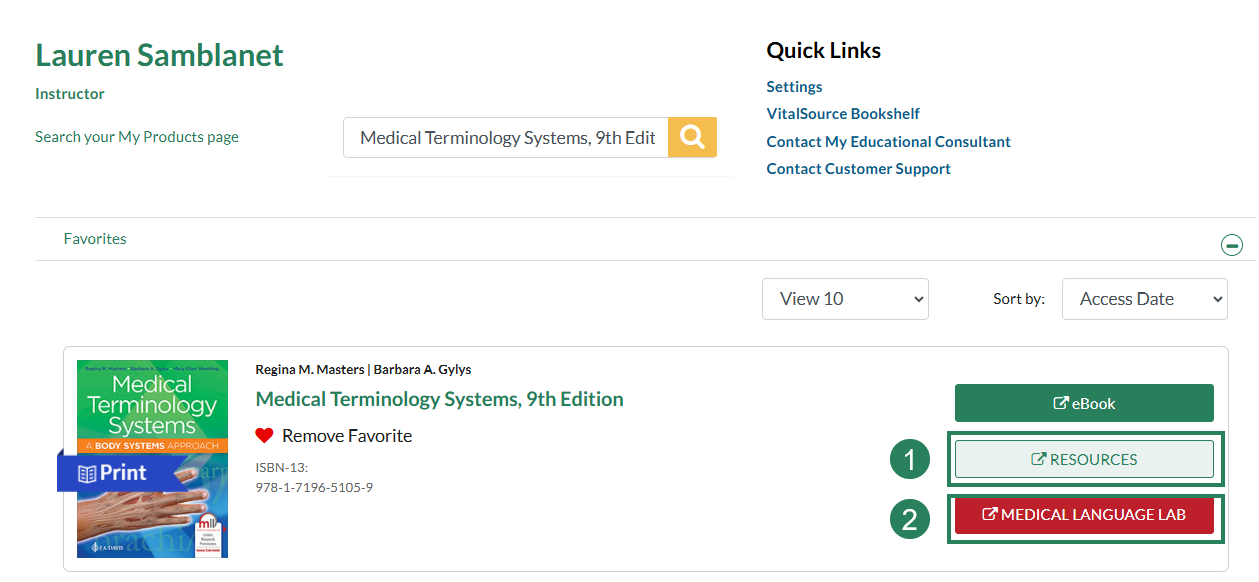
 

A screenshot in fadavis.com with green boxes and numbers highlighting the resources button (1) and the Medical Language Lab button (2).


When browsing your My Products list, you can adjust the View filter to display 10, 50 or all products you have access to. You can also sort by Access Date (most recent), Published Date (most recent), Author’s Name (A-Z), Title, or Package.
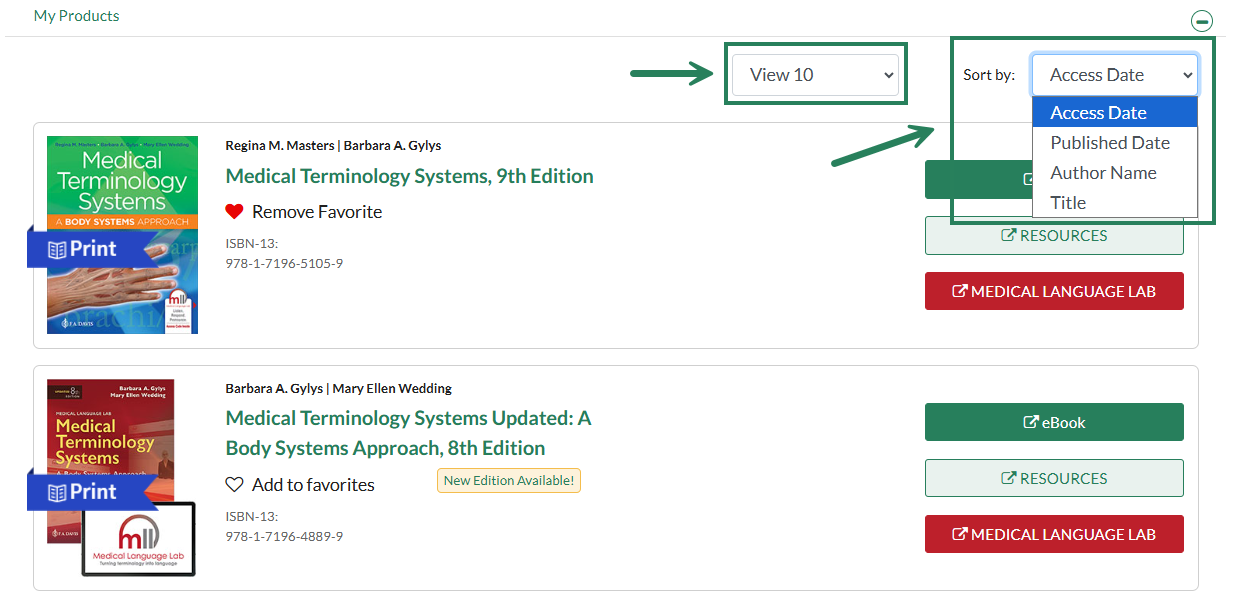
 

A screenshot of the My Products section with green boxes and arrows highlighting the option to change the View filter and the Sort By filter.


Click the "Medical Language Lab" button to access the platform for your selected title.
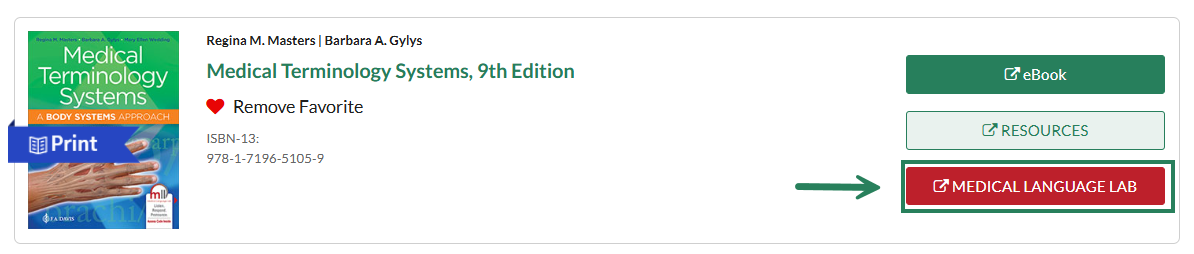
 

A screenshot in fadavis.com with a green box and arrow highlighting the Medical Language Lab button.


Or, you can use the “Browse Sites” box at the top left of any FAD page to access Medical Language Lab.
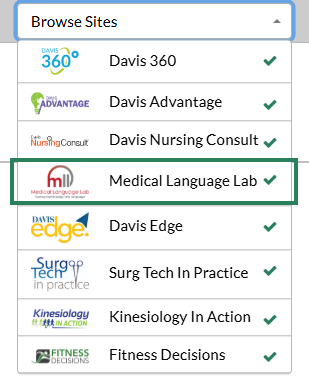
 

A screenshot of the Browse Sites box, with a green box highlighting the Medical Language Lab option.


You may have access to more than one title in Medical Language Lab. Click on a product to get started.


scroll to top icon