


This article is for Davis 360 products, which includes Dosage Calc 360, Test Success 360 and Med Term 360. While we use Dosage Calc 360 as an example, this information applies to all Davis 360 products.
There are two types of assignments you can assign to your students in Davis 360: Learning Assignments and Quizzing Assignments. You will find a brief introduction to each assignment type below.
The Instructor: Preview Student View article can help you learn how to navigate your Assignments page as the instructor. To learn how to review student performance for completed assignments, see Instructor: Access Actionable Analytics.
Learning Assignments
Learning Assignments in Davis 360 are module-based assignments addressing a broad priority topic in dosage calculations. The Learning Assignment is typically broken down into 2-4 subtopics (1), each containing a "Learn" and "Practice" segment for the student to work through. Once the student has completed every topic in the module, a Post Assessment (2) will unlock to test the student's knowledge and conclude the Learning Assignment.
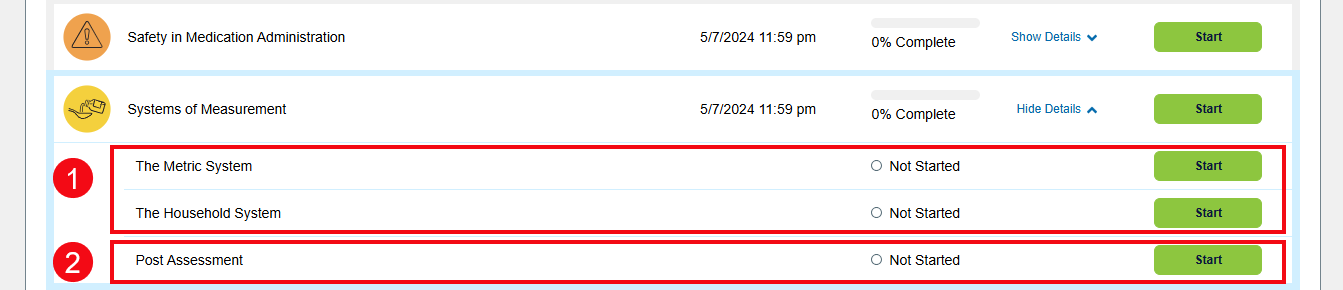
Learning Assignments follow a Learn, Practice, Assess model.
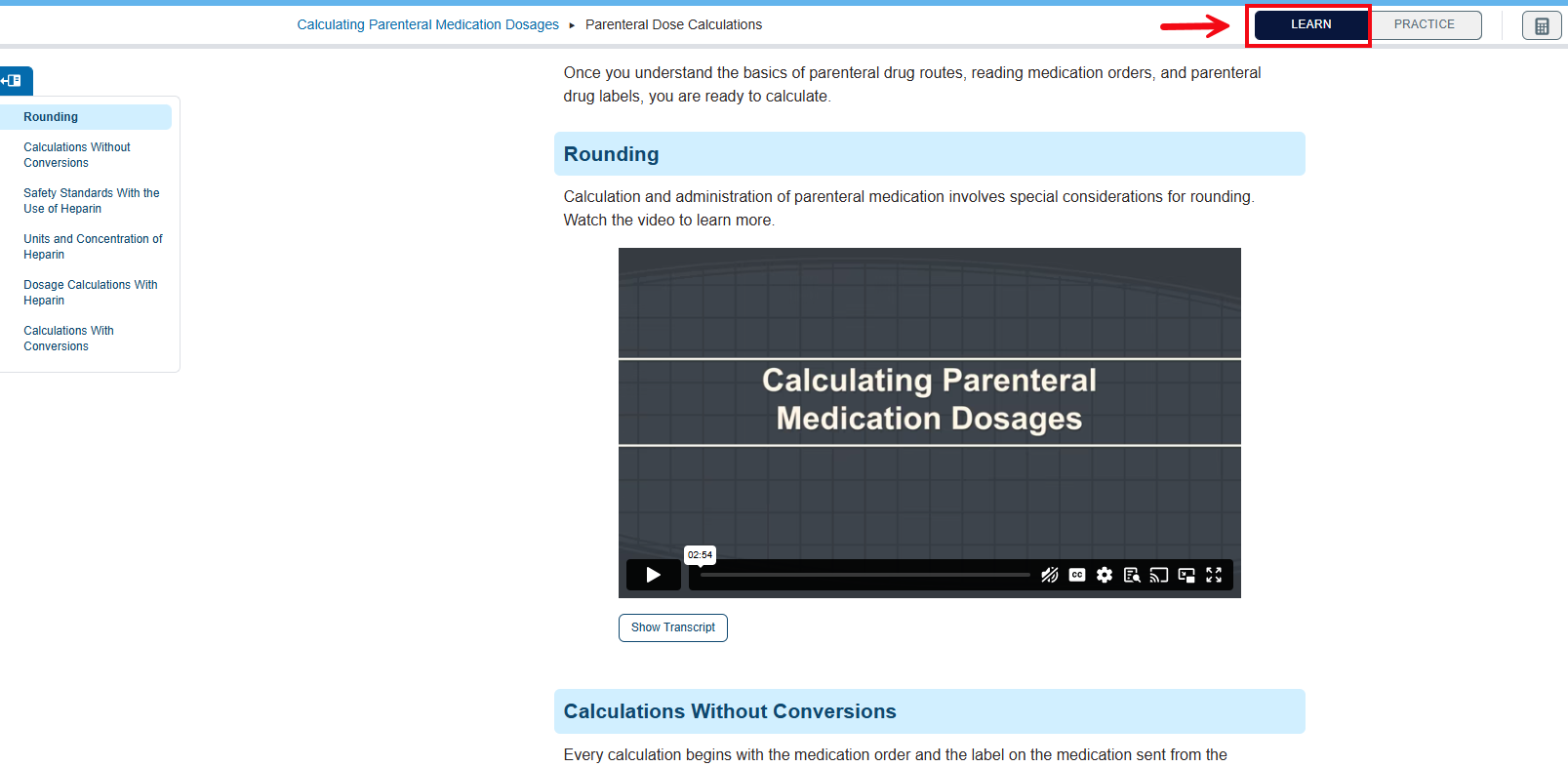
The learn section of each sub-topic delivers must-know content in student-friendly multimedia readings.
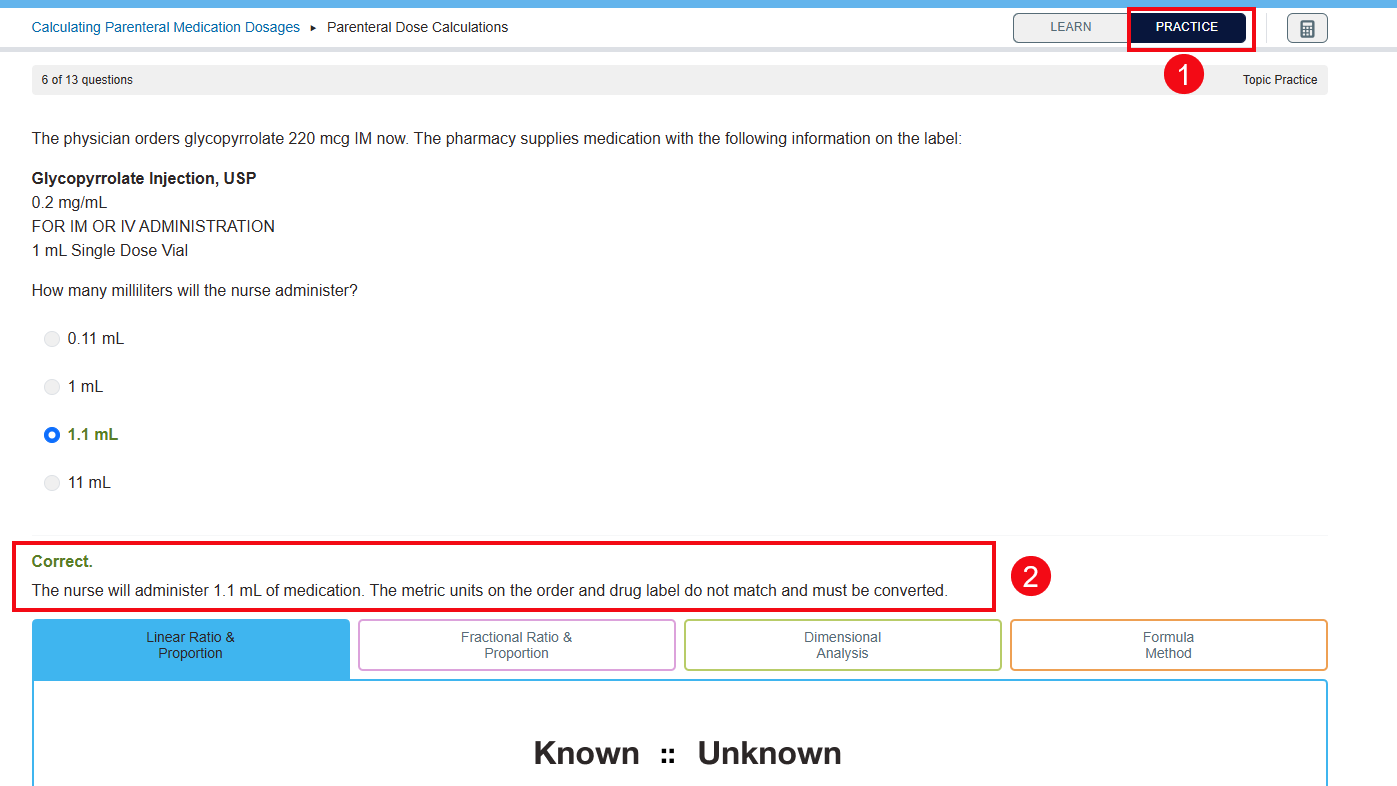
The Practice section for each sub-topic gives students the experience they need to master the content. In the Practice section (1), students will have two attempts to answer each question before seeing if they got it correct or incorrect and seeing a rationale for the correct answer (2).
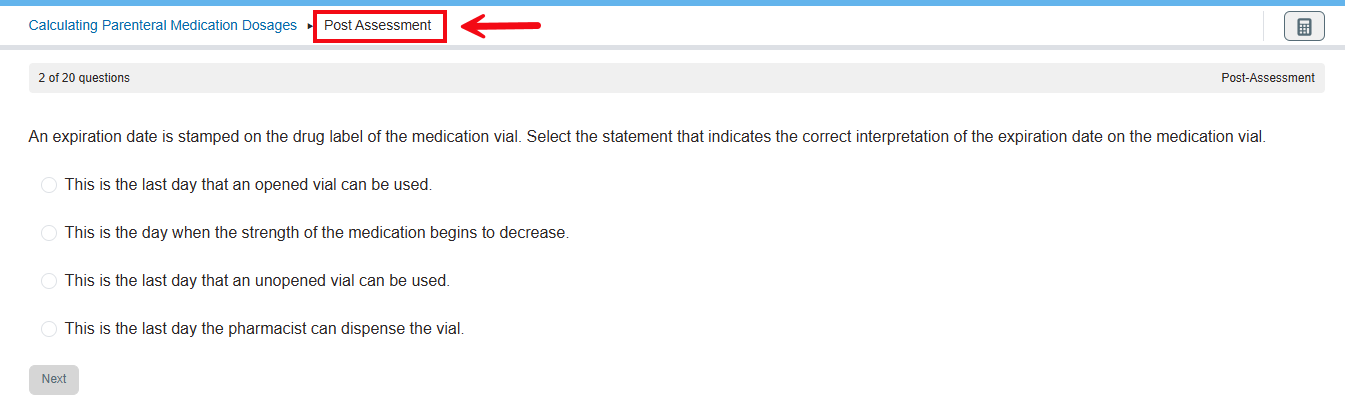
Students' learning is assessed through the Post Assessment that helps students and instructors easily track performance.
Quizzing Assignments
In addition to our readymade Learning Assignments, you also have the ability to create your own Quizzing Assignments to assess student progress on your own terms. Quizzing Assignments are a useful option for instructors who would like to assign homework quizzes covering content across multiple topics, or to create a mock test to help students prepare for an upcoming exam.
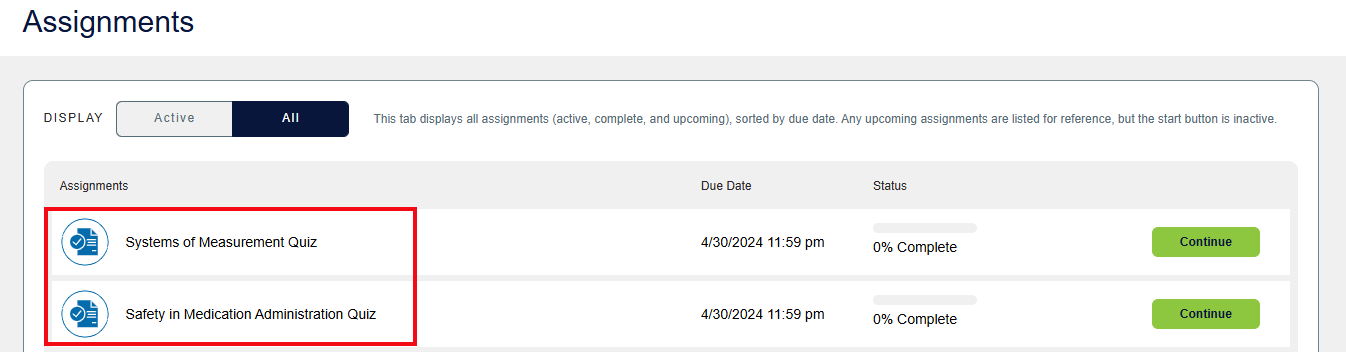
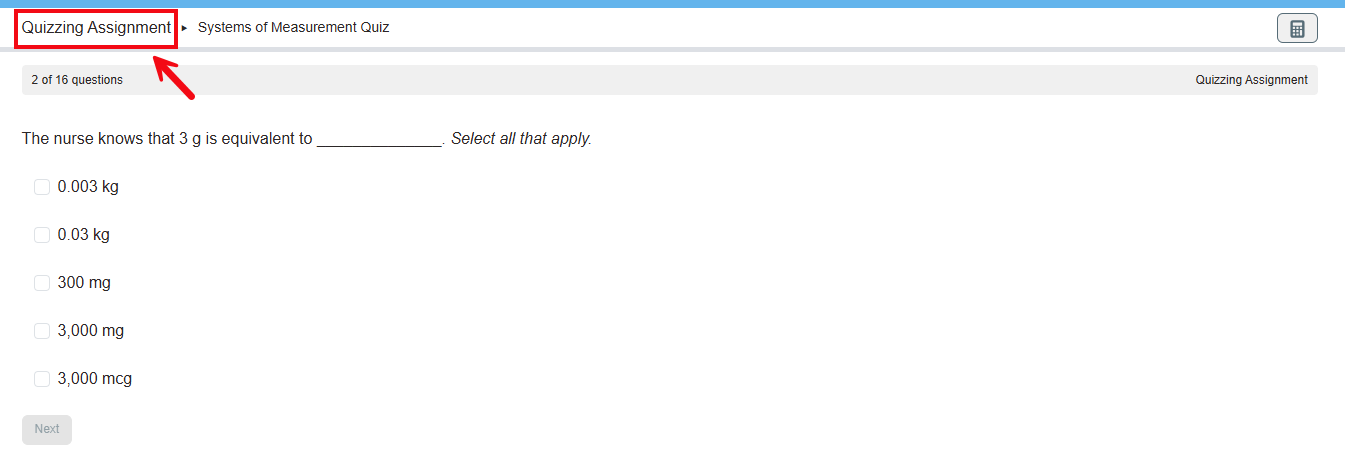
For more information on how to set up Quizzing Assignments in Dosage Calc 360 or Med Term 360, refer to this article. For more information on how to set up Quizzing Assignments and Clinical Judgement Case Studies in Test Success 360, refer to this article.
(Please Note: We offer a separate instructor Test Bank to help you create your class exams. You can find this test bank on FADavis.com under your Resources page for Davis 360.)


