This article is for Davis 360 products, which includes Dosage Calc 360, Test Success 360 and Med Term 360. While we use Dosage Calc 360 as an example, this information applies to all Davis 360 products.
View Gradebook
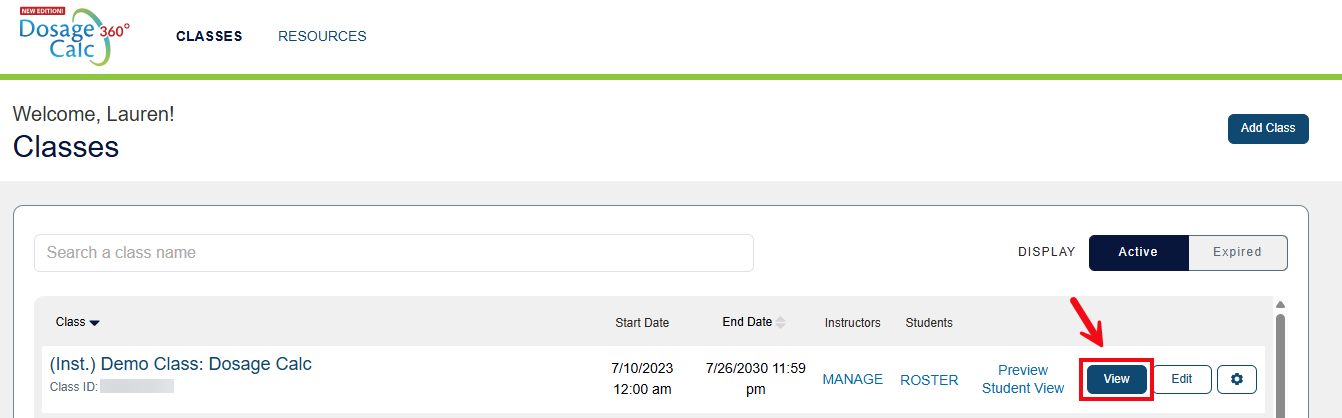
Click on View to access your class's dashboard.
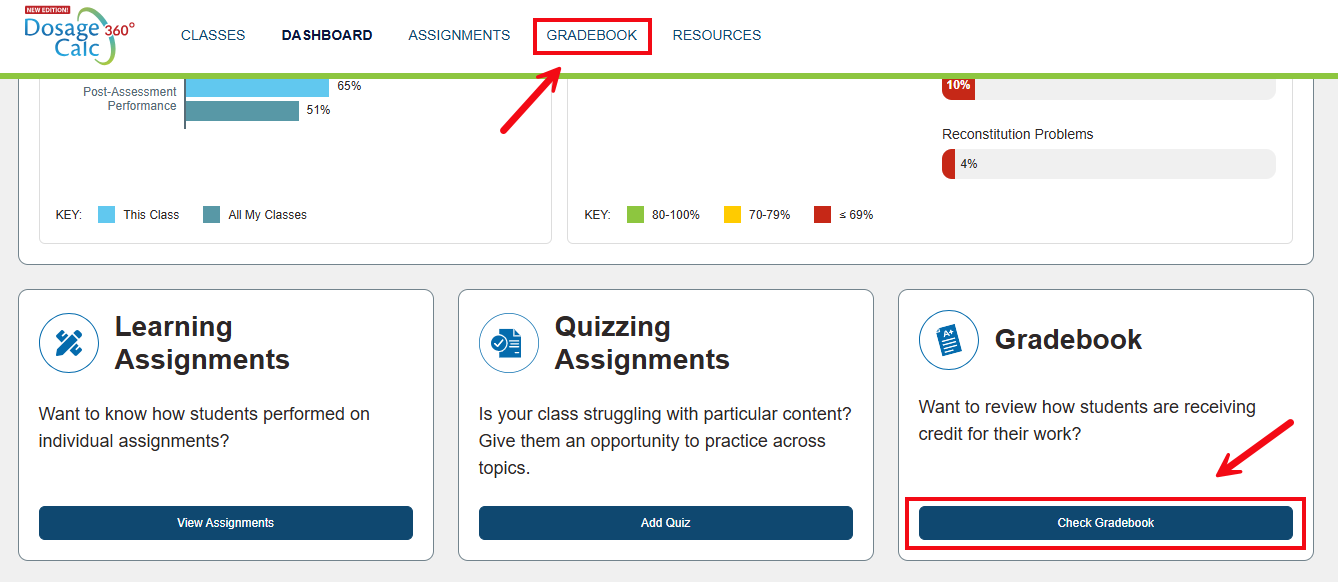
To access to the gradebook, you can click the Gradebook tab at the top of the dashboard, or click Check Gradebook at the bottom of the Dashboard page.
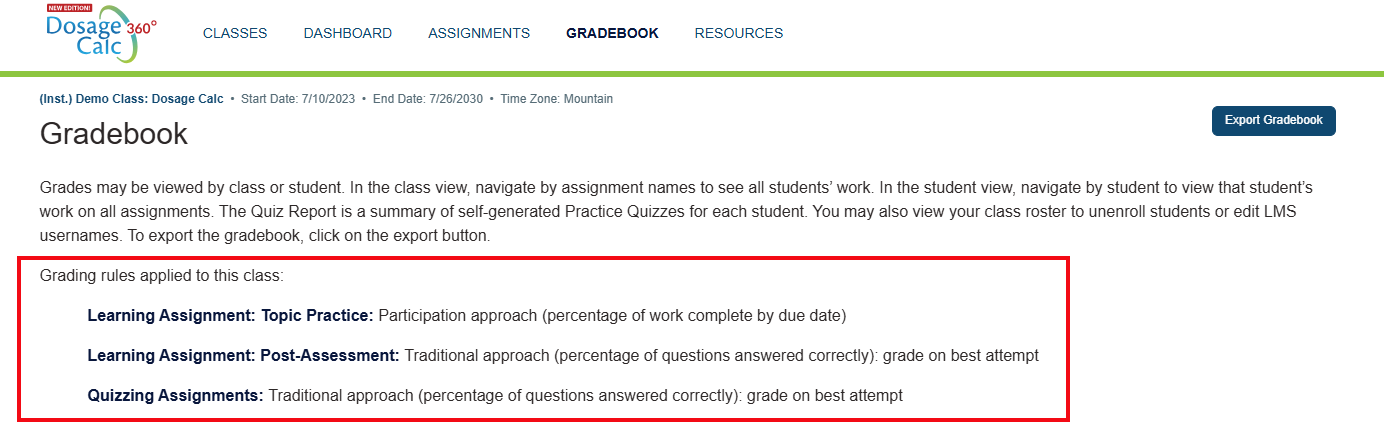
At the top of the Gradebook page, your selected grading rule will be displayed. These are the grading rules that you selected in your class setup. These rules determine how student work shows up in the Gradebook.
Display Options
There are four display options in Gradebook: Class (1), Student (2), Quiz Report (3), and Roster (4).
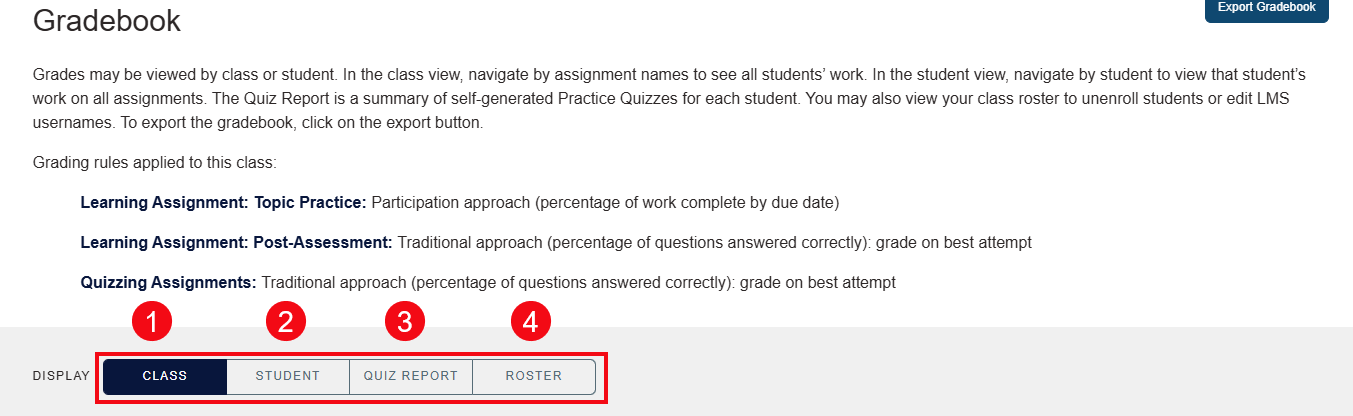
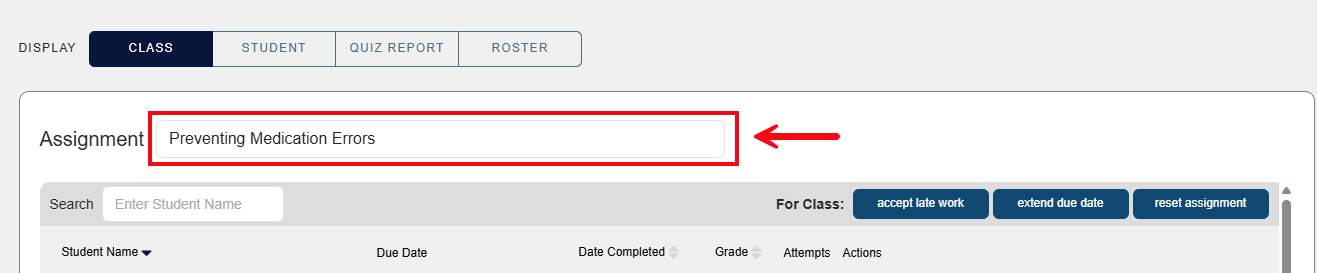
Under Class display, you can filter by Assignment. The Assignment dropdown allows you to toggle between topics and see the grades for all of the students in your class for a selected topic. This view will also show the date each assignment was submitted in relation to your designated due date.
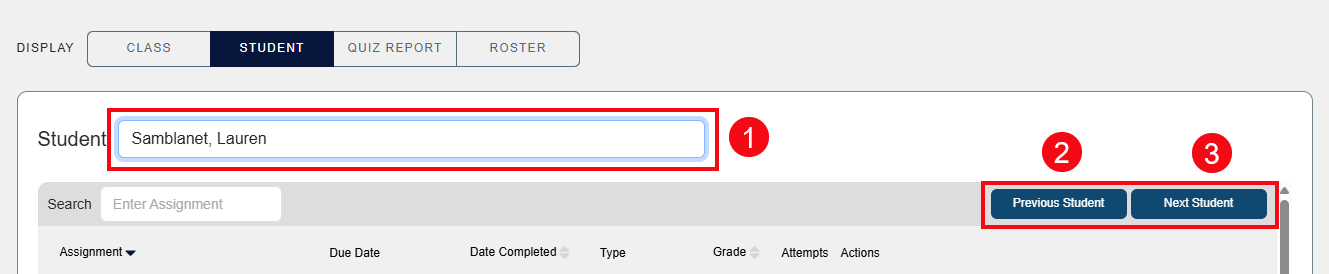
Under Student display, you can use the dropdown to select a single student (1). You can also use the Previous Student (2) and Next Student (3) buttons to view each student one at a time.
Under Quiz Report display, you can see how many practice quizzes your students have created, total number of practice quiz questions, number of questions answered correctly and an average practice quiz score.

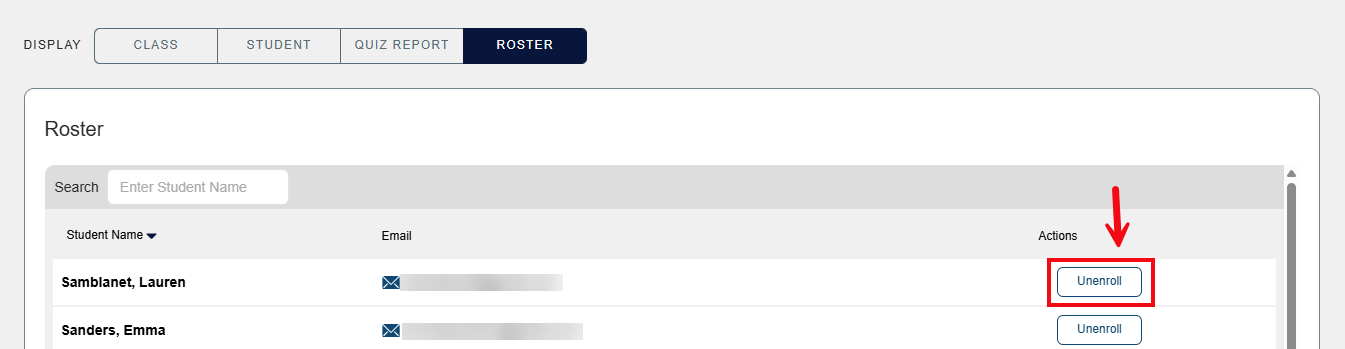
Under Roster display, you can view the students who are enrolled in your course. You can unenroll a student by clicking Unenroll button by their name.
Export the Gradebook
Davis 360° provides the option to download student grades to an Excel spreadsheet. The exported scores may also be uploaded into a learning management system – such as Angel, Blackboard, Canvas, D2L, or Moodle. To download a spreadsheet of all student grades, click the Export Gradebook button.
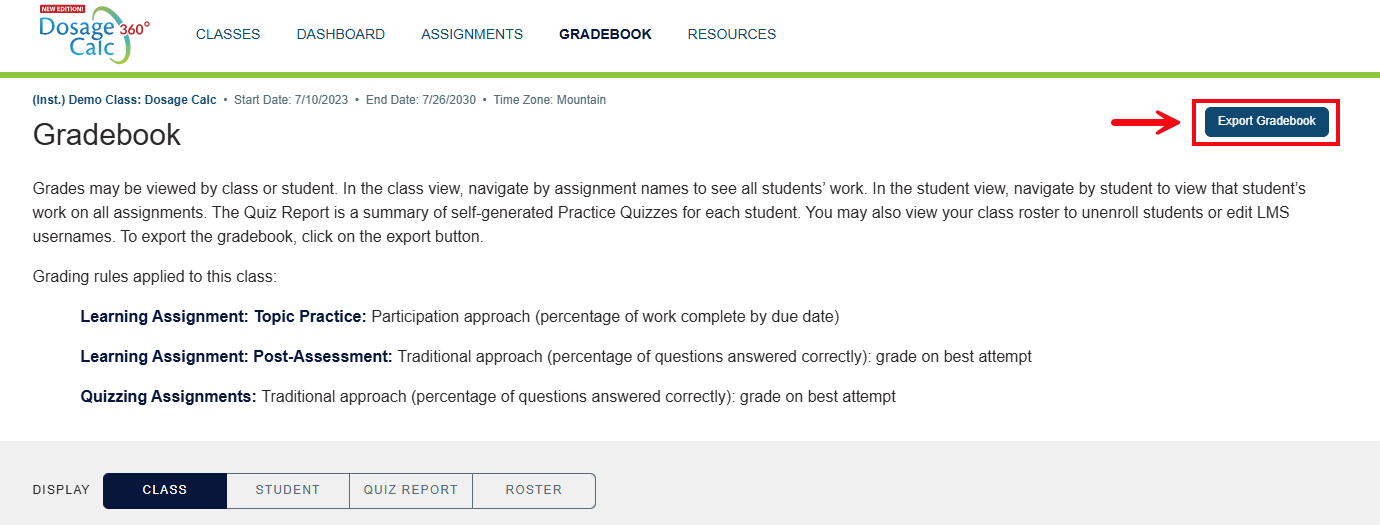
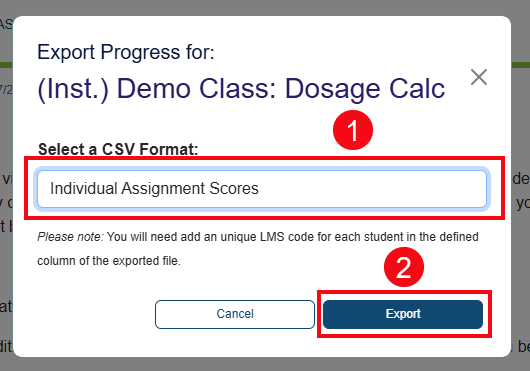
Then, choose your preferred format from the drop down menu (1) and click the Export button (2).