This article is for Davis 360 products, which includes Dosage Calc 360, Test Success 360 and Med Term 360. While we use Dosage Calc 360 as an example, this information applies to all Davis 360 products.
Once you have redeemed or purchased access, you will be prompted to Join a Class.
Class ID
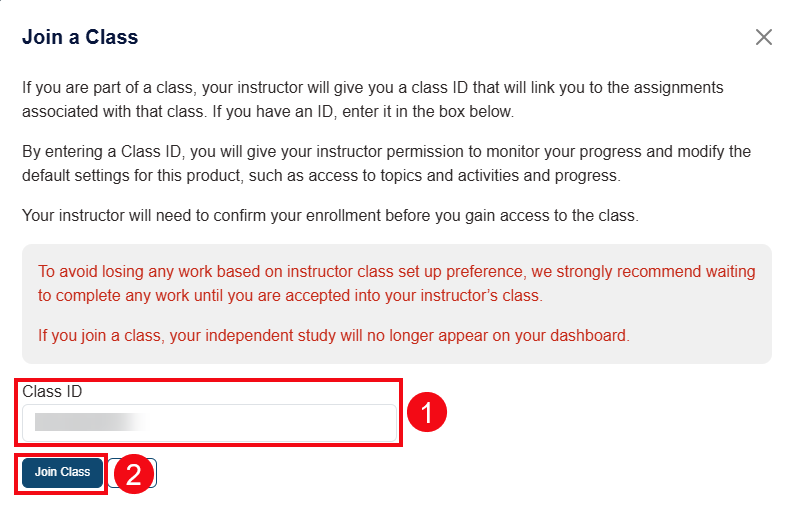
If you are using Davis 360 as part of a course, your instructor will provide you with a Class ID. You must enter the Class ID in order to successfully enroll in your instructor’s class and see the required assignments.
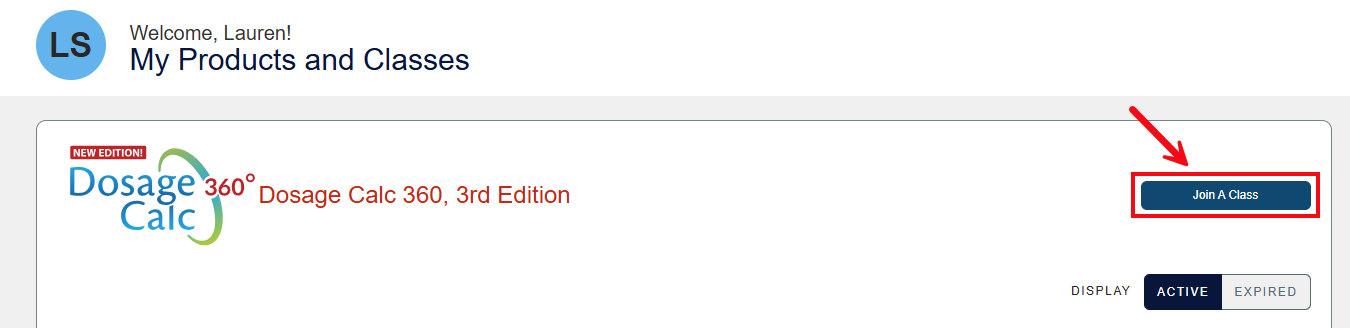
Start by clicking the Join a Class button.
A pop-up will appear. Enter the Class ID and click the Join Class button.
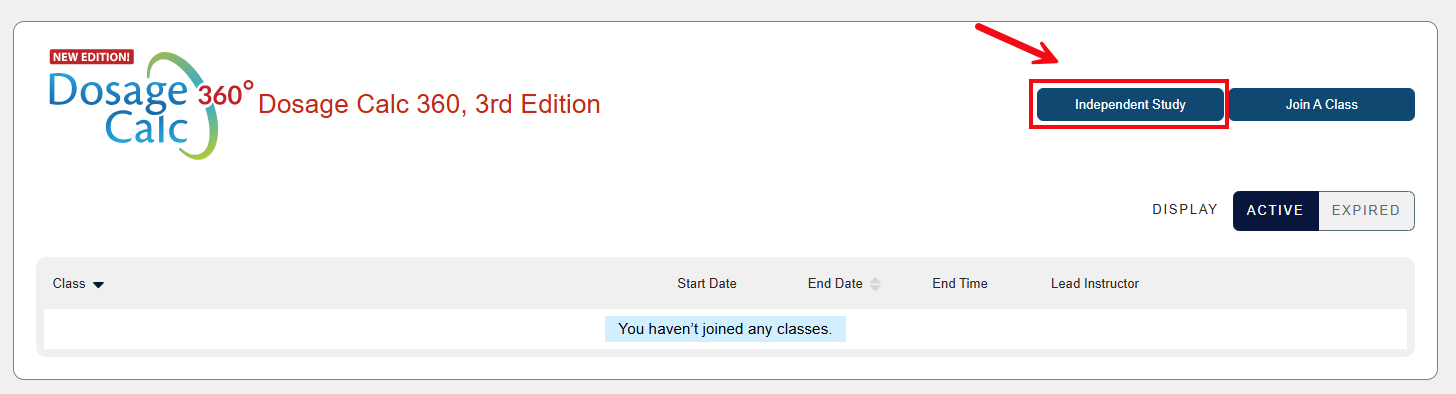
If you are not using Davis 360 as part of a class, you may select Independent Study to work on your own.
Confirming Enrollment
Once you have entered a valid Class ID, the class title will appear on your Classes page.
If your instructor has set up auto-enrollment, you will be able to View the class immediately.
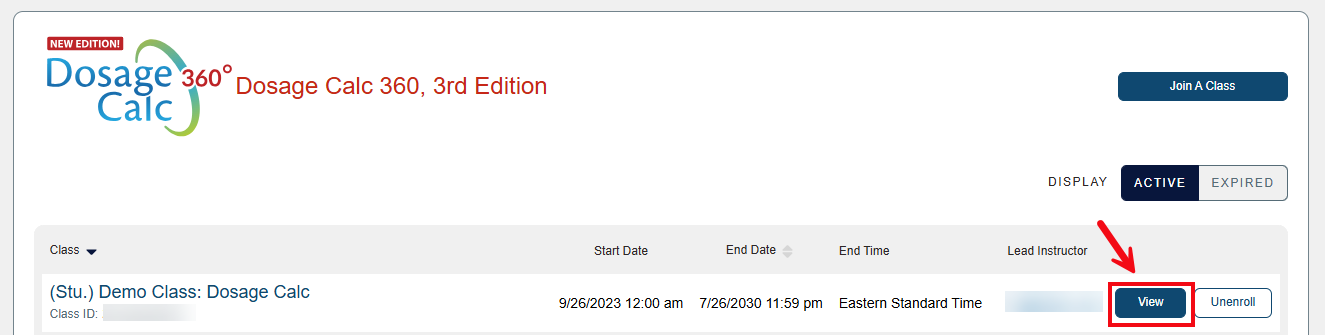
If your enrollment request is awaiting instructor approval, Pending Acceptance will appear.

Unenroll from a Class
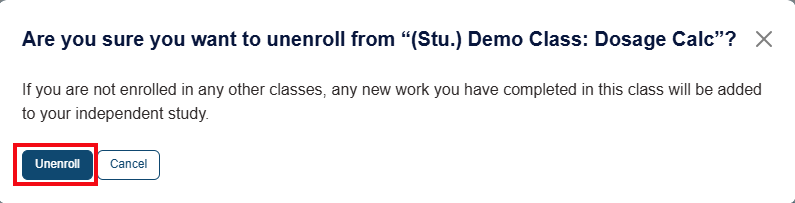
In the event that you need to unenroll from a class, click the Unenroll button to the right of the class.
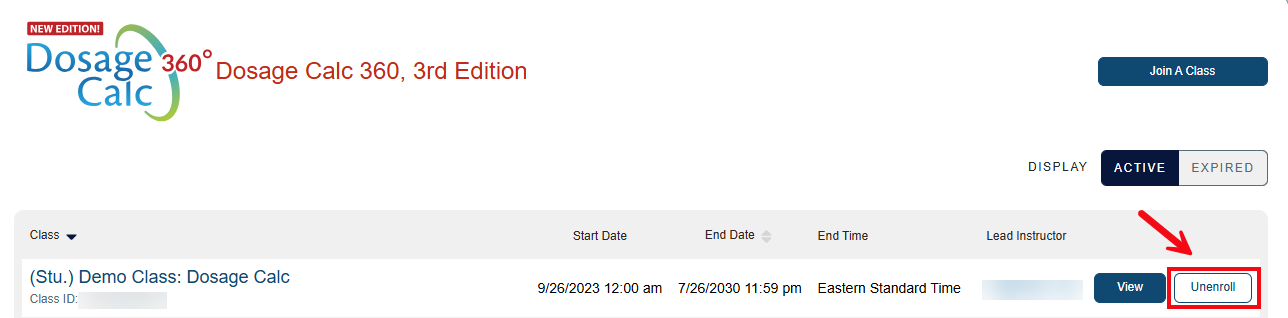
A pop-up will appear asking you to confirm this action. The instructor will be notified of your unenrollment.