This article is for Davis 360 products, which includes Dosage Calc 360, Test Success 360 and Med Term 360. While we use Dosage Calc 360 as an example, this information applies to all Davis 360 products.
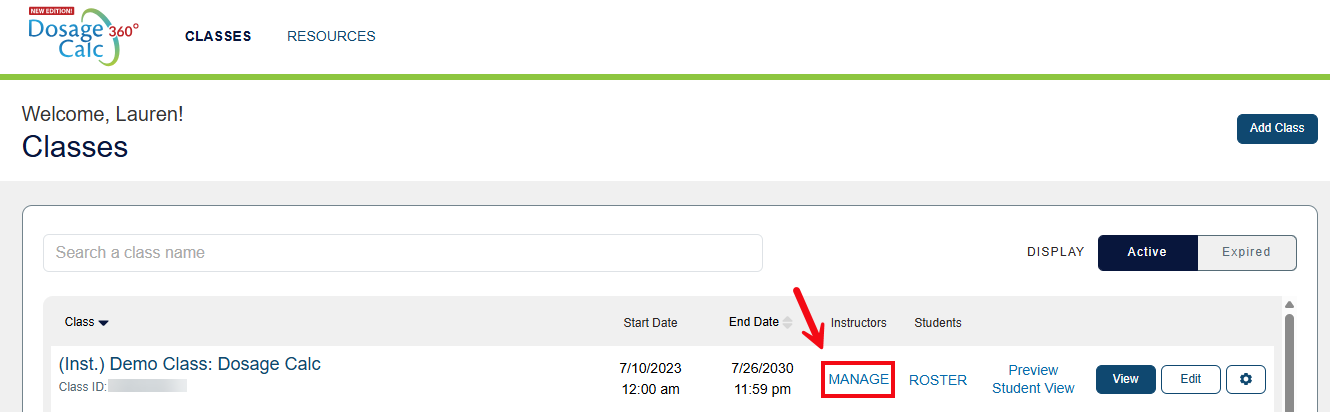
To invite a colleague to join your class, start on your Classes page, then click a Manage hyperlink within the Instructors column for a class.
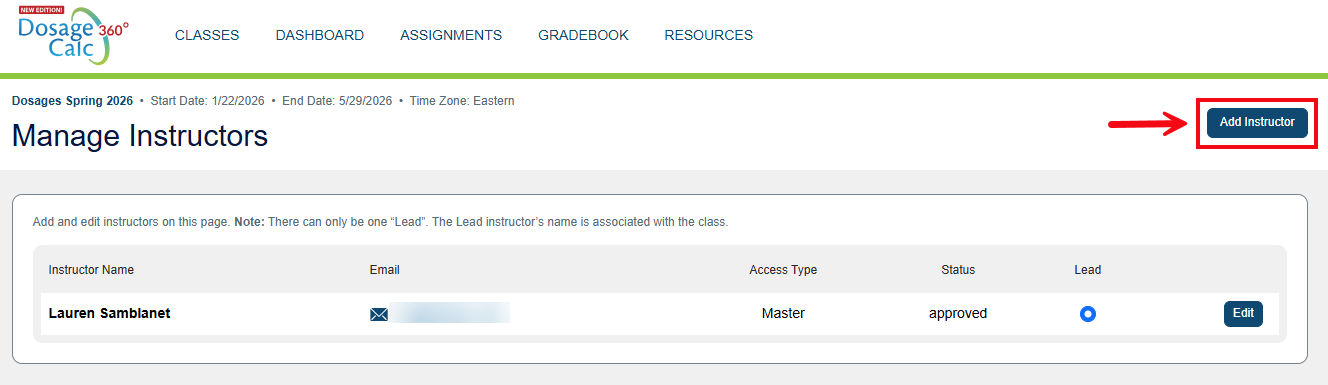
Then, click the Add Instructor button found in the top-right above your instructors list.
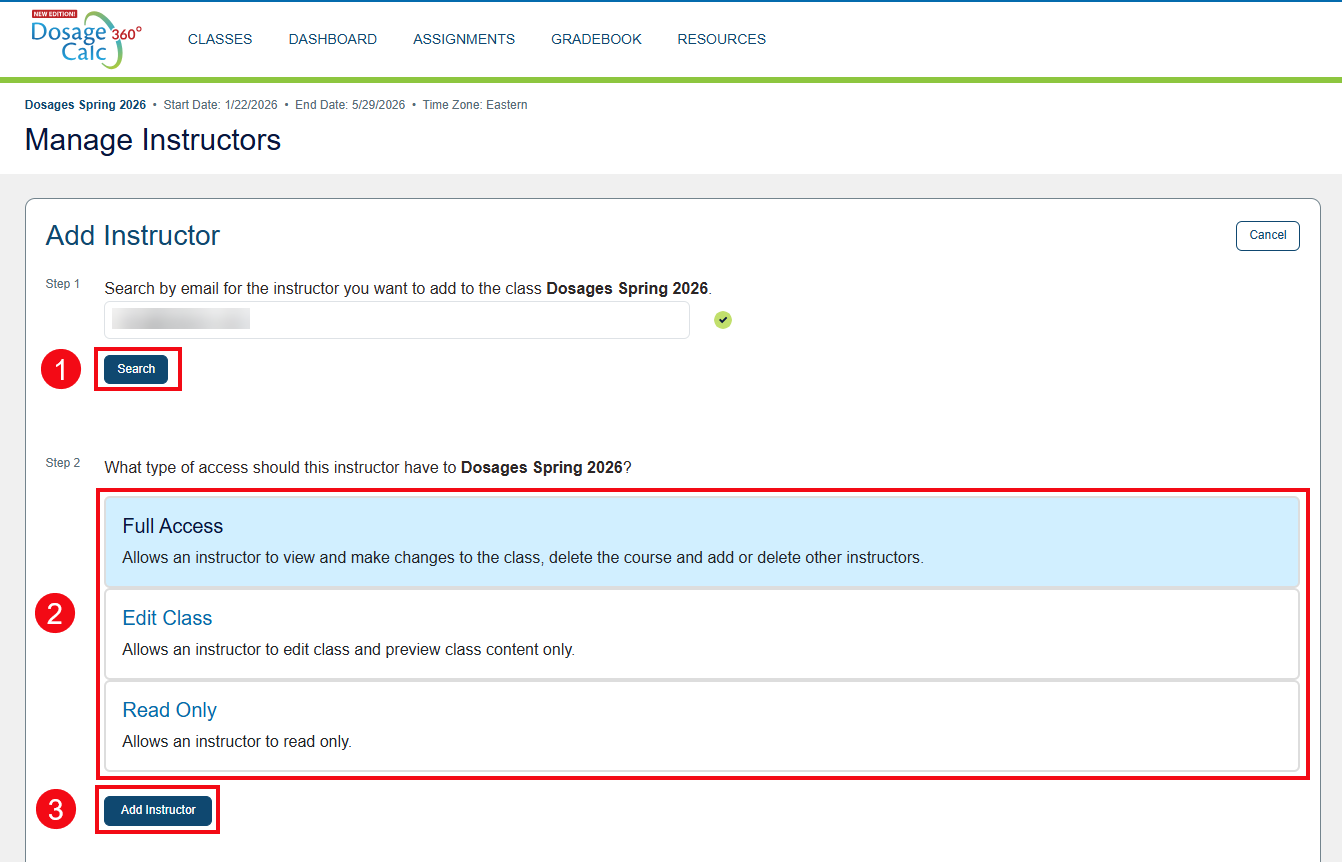
Enter your colleague’s email address and click Search (1).
Click to choose the Access Type (2) for the instructor you are adding. You may choose between:
- Full Access: user has permission to edit the class, view students’ work, add/remove instructors, or delete the class.
- Edit Class: user has permission to edit the class, view students’ work; cannot add/remove instructors or delete the class.
- Read Only: user cannot make any changes to the class; can only view the setup and students’ work.
Once you've selected an Access Type, click the Add Instructor button (3).
If an Instructor Email is not found and you are certain you are using the correct email address, please contact your F.A. Davis Educational Consultant to request access for that instructor.

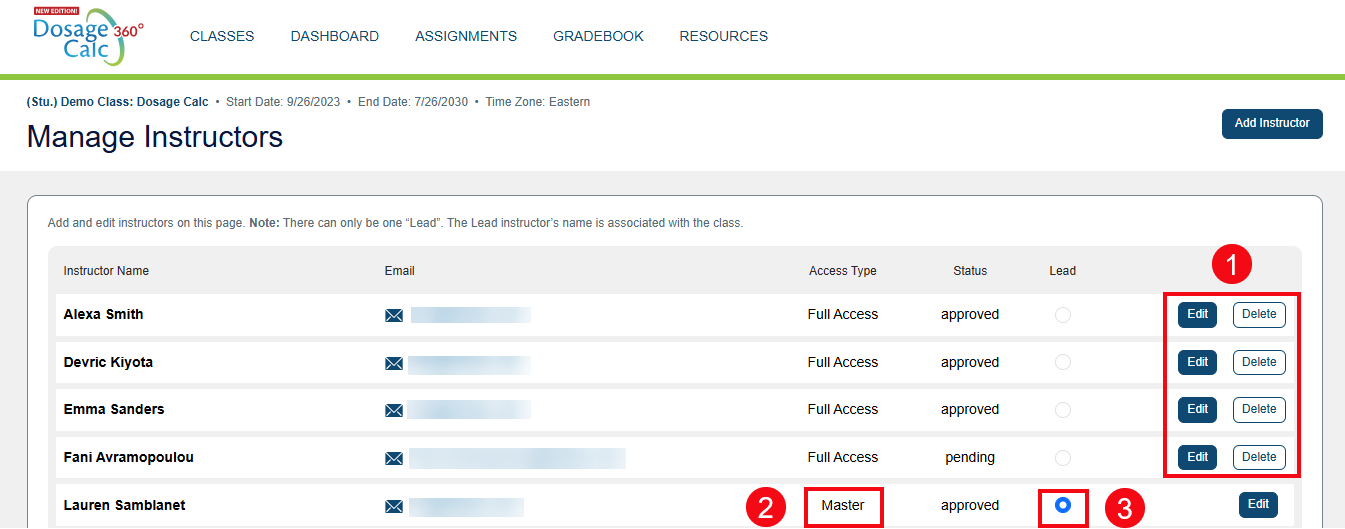
Once you have successfully added a new instructor, that instructor will appear in the instructor list.
Select the Edit button to change an instructor’s Access Type, or Delete to remove an instructor from the class at-hand (1). Note: The Master instructor is the individual that created the class (2). The Lead is the instructor whose name/e-mail is associated with the class (3).