


If you would like to include Clinical Judgment and Simulation Assignments in your Davis Advantage course, you can choose to add them during Class Setup, or you can add them individually once the class is created. If you have already created your course, you can return to Class Setup at any time by clicking Edit alongside your course on the Active Classes Page. For a full explanation of how to Create a Class in Davis Advantage, click here.
Add Clinical Judgment and Simulation Assignments to a New Course
To add Clinical Judgment and/or Simulation Assignments during Class Setup, select Customize Experience from the top menu.

Scroll down to the Clinical Judgment Assignments.
To include all available Clinical Judgment Exercises, select Yes.
Option 1: Yes: Adds the available Clinical Judgment Cases for any of the related Personalized Learning topics selected on the previous (Select Content) tab.
Option 2: No: Excludes Clinical Judgment Cases at this time.
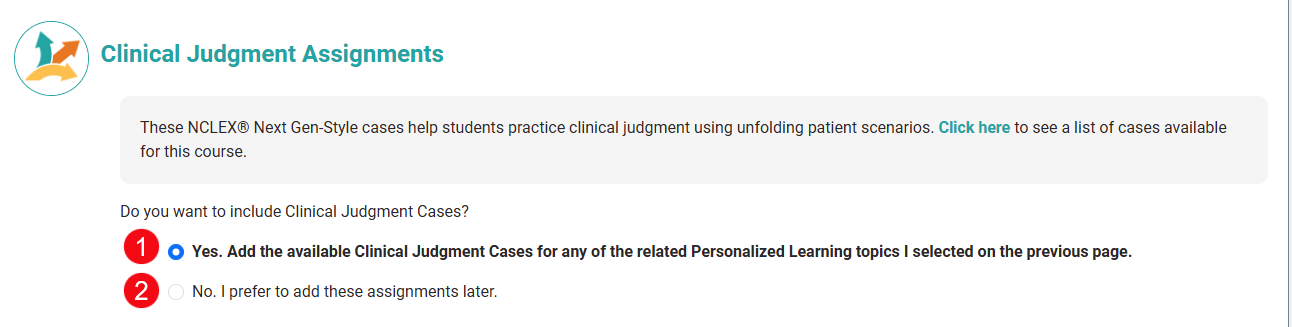
Scroll down to the Simulation Assignments.
To include all available Simulation Assignments, select Yes.
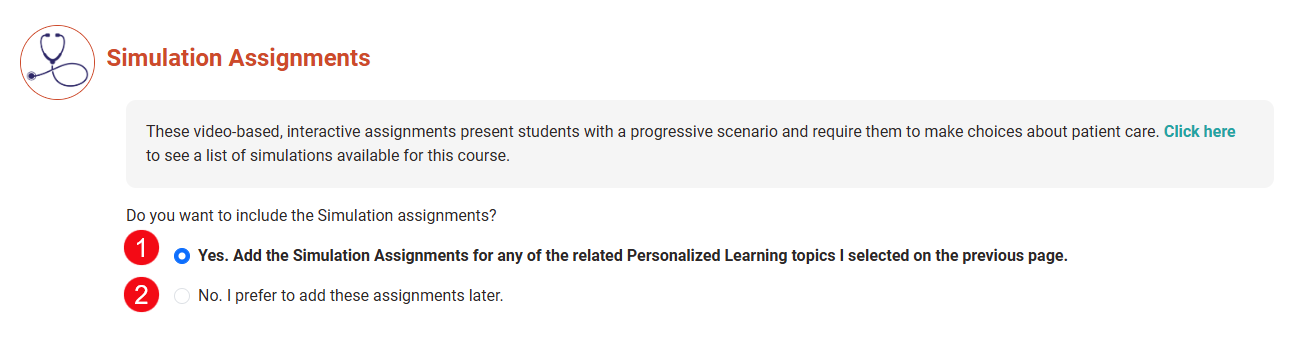
Option 1: Yes: Adds the available Simulation Assignments for any of the related Personalized Learning topics selected on the previous (Select Content) tab.
Option 2: No: Excludes Simulation Assignments at this time.
Click the Next Step button to save your changes.
Add Clinical Judgment and Simulation Assignments to an Existing Course
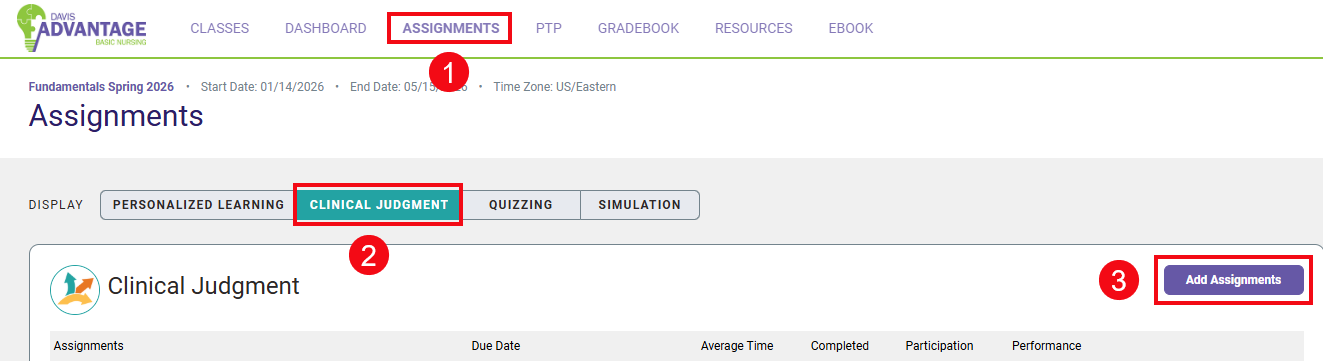
If you chose to exclude Clinical Judgment and Simulation Assignments during class setup, you can easily add these assignments manually by clicking to the Assignments page using the menu in Davis Advantage (1).
Select the "Clinical Judgment" tab (2) on your Assignments page, then select "Add Assignments" (3).
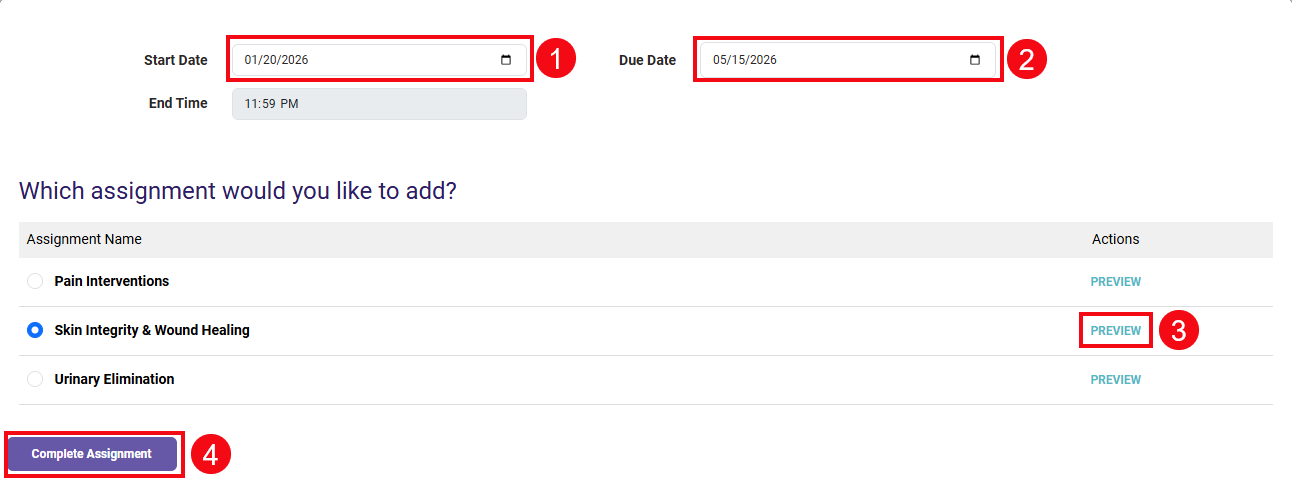
You will then be taken to a menu page where you can choose from the Clinical Judgment Assignments created for your textbook. Once you have selected a case, enter the start date (1) and due date (2) for the assignment. You also have the option to preview the assignment (3) if you would like to review the content from the student's perspective before assigning the case. Once you are ready to assign the content, select "Complete Assignment" to save your work (4). The Clinical Judgment case will now become visible to your students on the Start Date you selected.
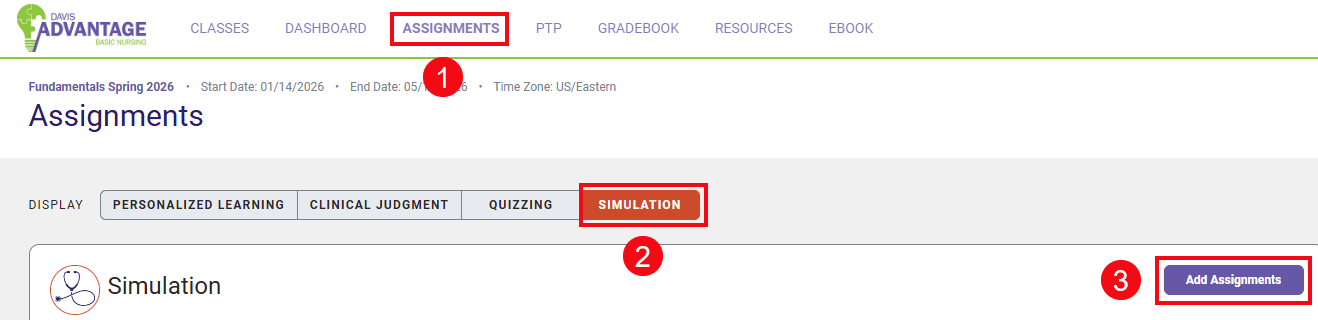
To manually add Simulation assignments click to the Assignments page using the menu in Davis Advantage (1). Select the "Simulation" tab (2) on your Assignments page, then select "Add Assignments" (3).
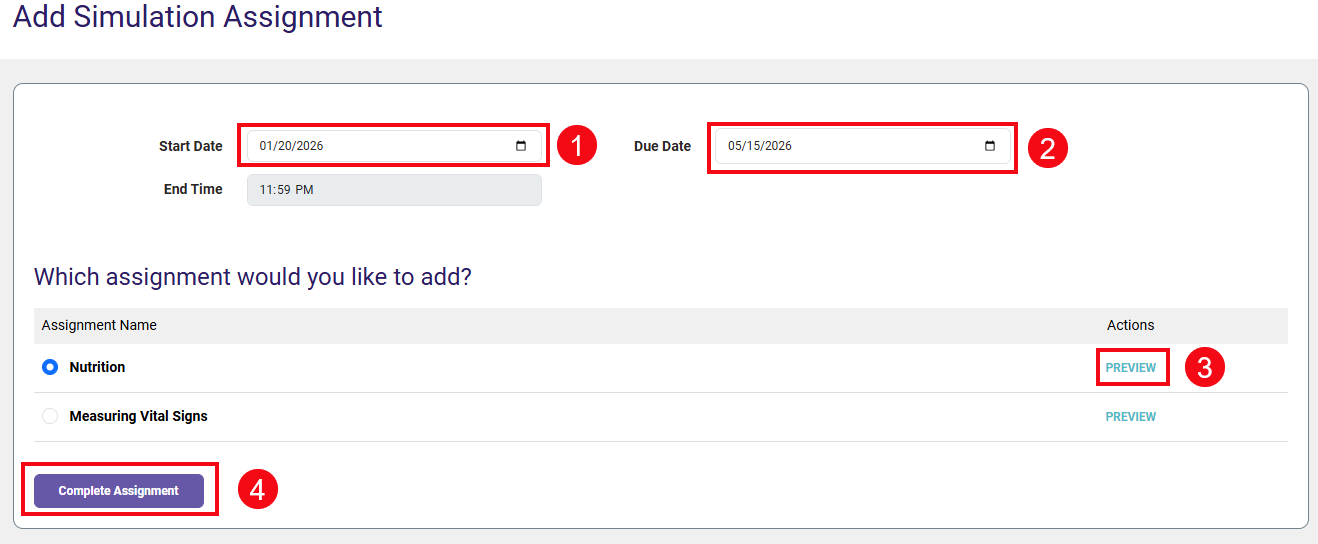
You will then be taken to a menu page where you can choose from the Simulation Assignments created for your textbook. Once you have selected an assignment, enter the start date (1) and due date (2) for the assignment. You also have the option to preview the assignment (3) if you would like to review the content from the student's perspective. Once you are ready to assign the content, select "Complete Assignment" to save your work (4). The Simulation assignments will now become visible to your students on the Start Date you selected.
Once you add Clinical Judgment and/or Simulation Assignments to your course, you will also be able to update their Start and Due Dates on the Schedule Content tab in Class Setup. Students will see the Clinical Judgment and Simulation Assignments integrated into their Dashboard and their Assignments page, ranked by Due Date like other Assignment Types.

