


This article is for specifically for Test Success 360. For Dosage Calc 360 or Med Term 360, refer to this Create Quizzing Assignments article.
Add Quizzing Assignments
In addition to the preset assignments that can be added during Class Setup, Instructors can add Quizzing Assignments to their Test Success 360.
The Quizzing content in Test Success 360 provides an opportunity to practice all the NCLEX formats, including Next Gen questions, using fundamentals level content. We see students using this resource throughout their fundamentals course as extra practice. We do not recommend instructors assign these with a traditional grade.
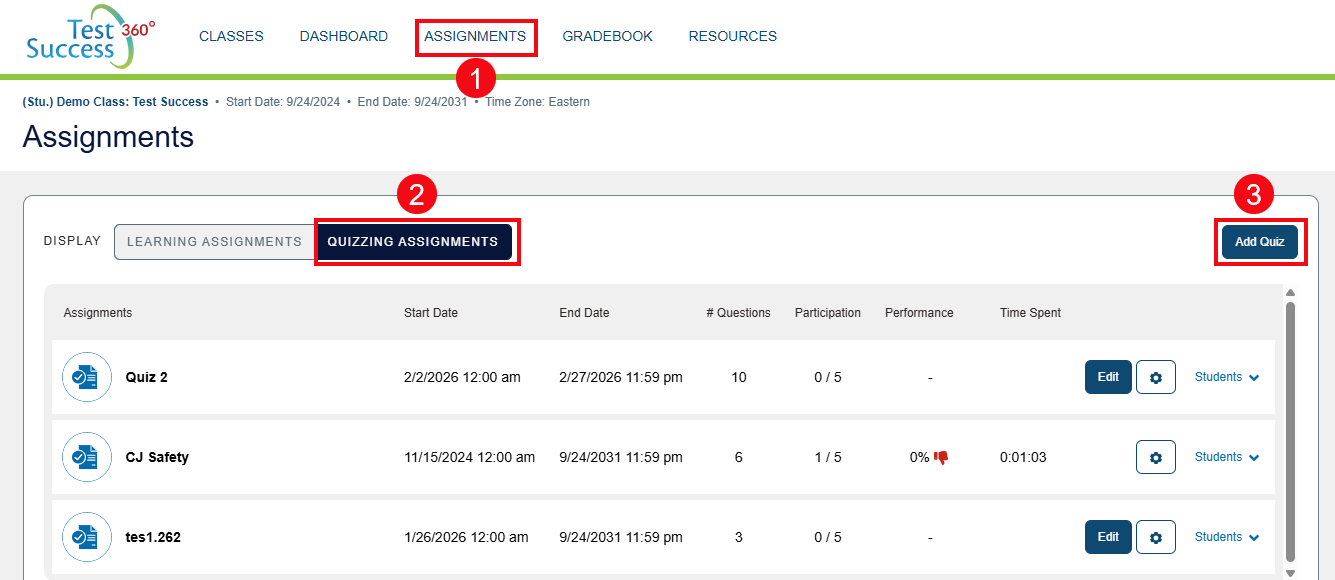
To add Quizzing Assignments, select Assignments (1) from the top navigation bar, then the "Quizzing Assignments" display option (2), where you'll be able to click the "Add Quiz" button (3).
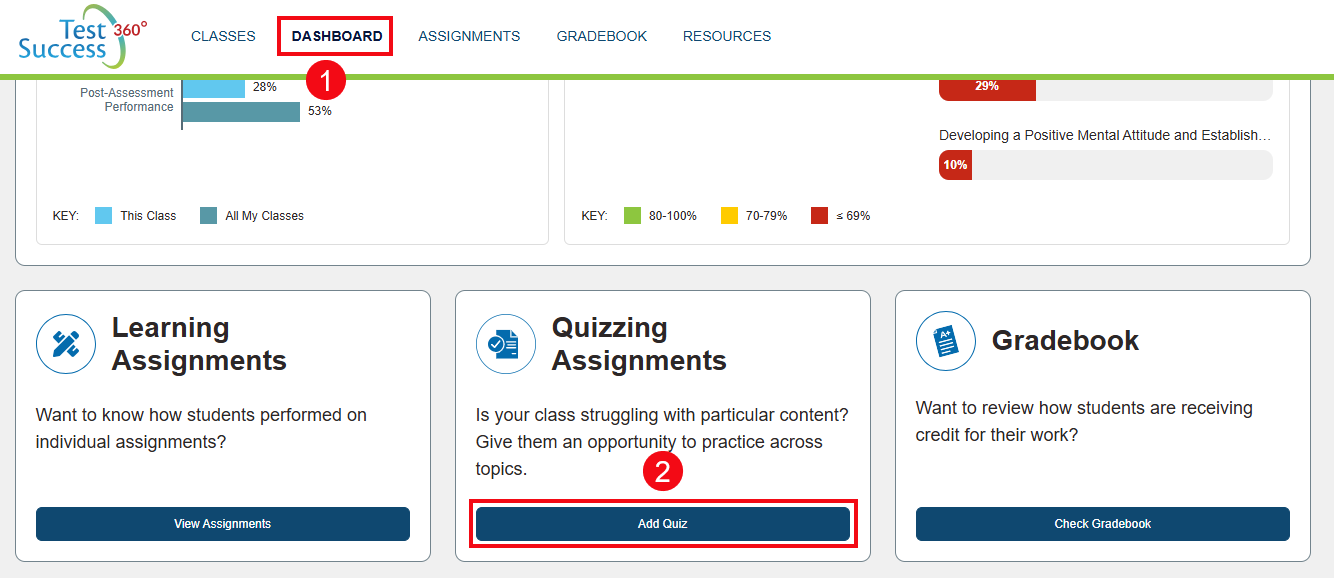
Alternatively, you can also access the Quiz Builder from you Dashboard page (1). At the bottom of the page, in the Quizzing Assignments section, click the Add Quiz button (2).
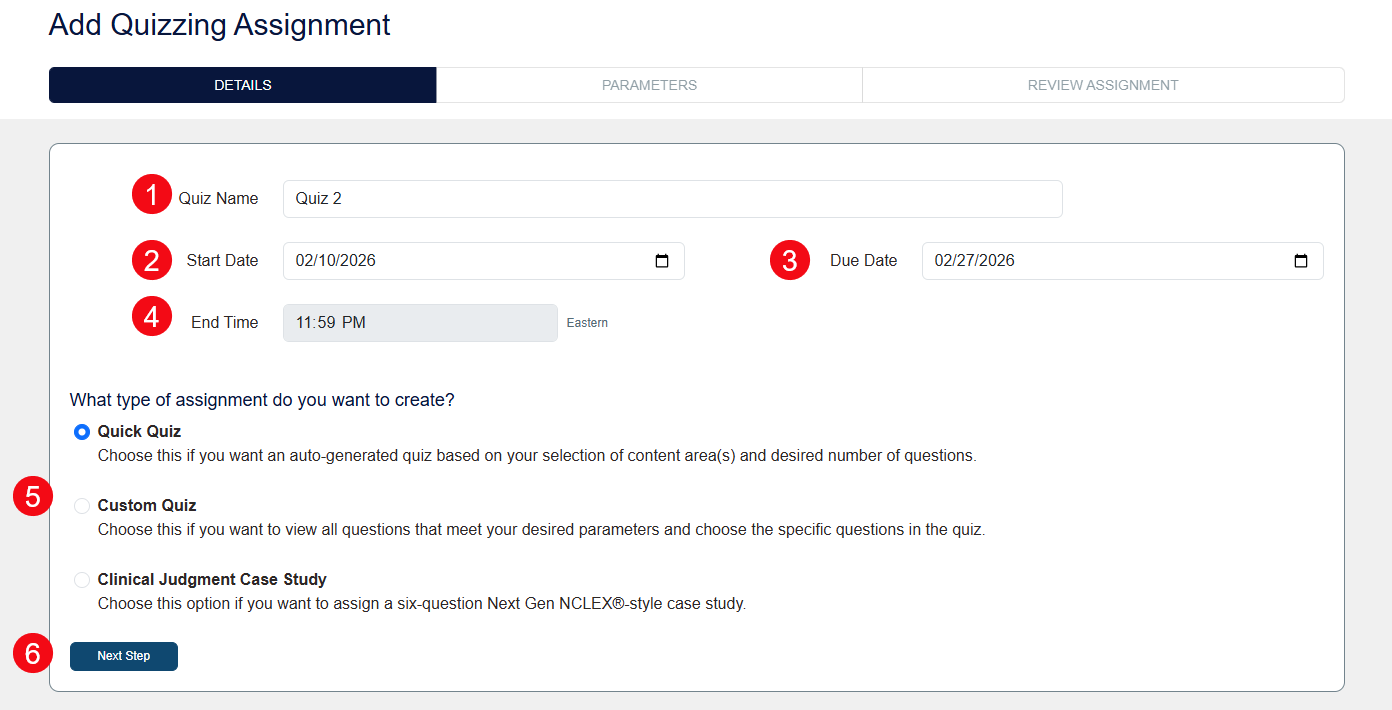
In the Quiz Builder, begin by entering an Assignment Name for your quiz (1), then choose a Start Date (2) and End Date (3). A quiz's Start Date will determine when your students can access it (first minute of the selected day) and its End Date will determine when the assignment is due for credit. For the end time (4), the default is last minute of the selected End Date, though this can be adjusted in your Class Setup by changing the End Time. Next, select the type of Quizzing Assignment you would like to create (5). There are two options to choose from: Quick Quiz, Custom Assignment, or Clinical Judgement Assignment. We will review each assignment type below. Once you have selected these details, click the Next Step button (6).
Quick Quiz
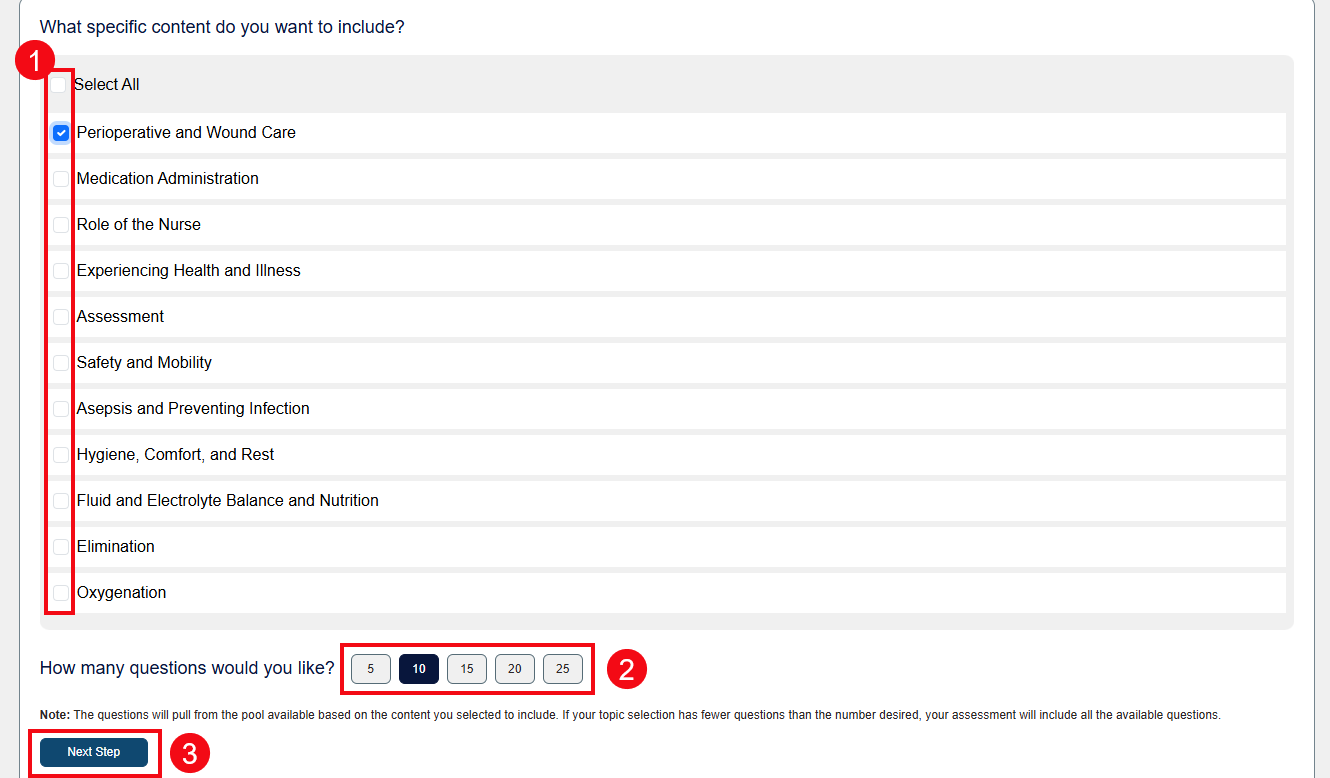
A Quick Quiz generates questions based on the content you would like to include, and can range between 5 and 25 questions.
To begin, select the specific topics you would like to include by clicking the checkbox beside a topic (1). Next, select the number of questions you would like (2). Then, click the Next Step button (3).
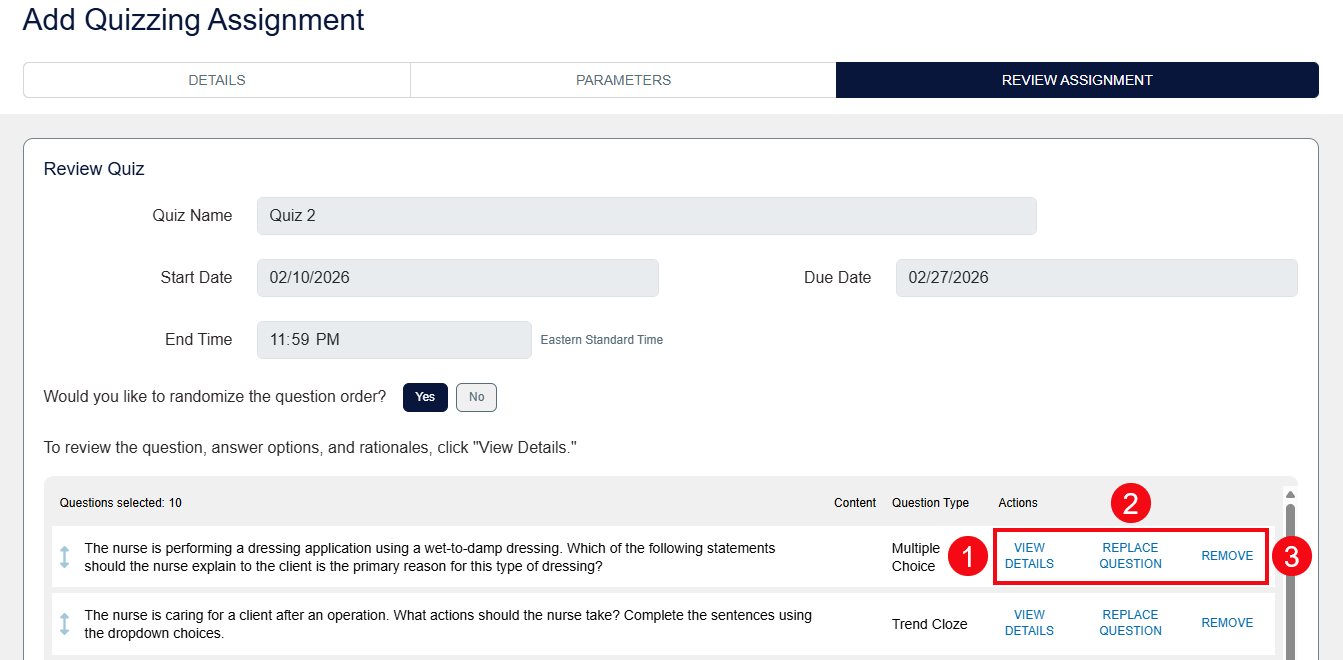
Once you have set the parameters for your Quick Quiz, the platform will generate a quiz for you with questions selected at random from within your chosen parameters. You can review these questions individually by clicking View Details (1). If you find a question you would rather not use, you can use the Replace Question feature to generate a different question within the same topic (2). You can also click Remove to remove questions that you don't want to use to streamline your quiz to a shorter length (3).
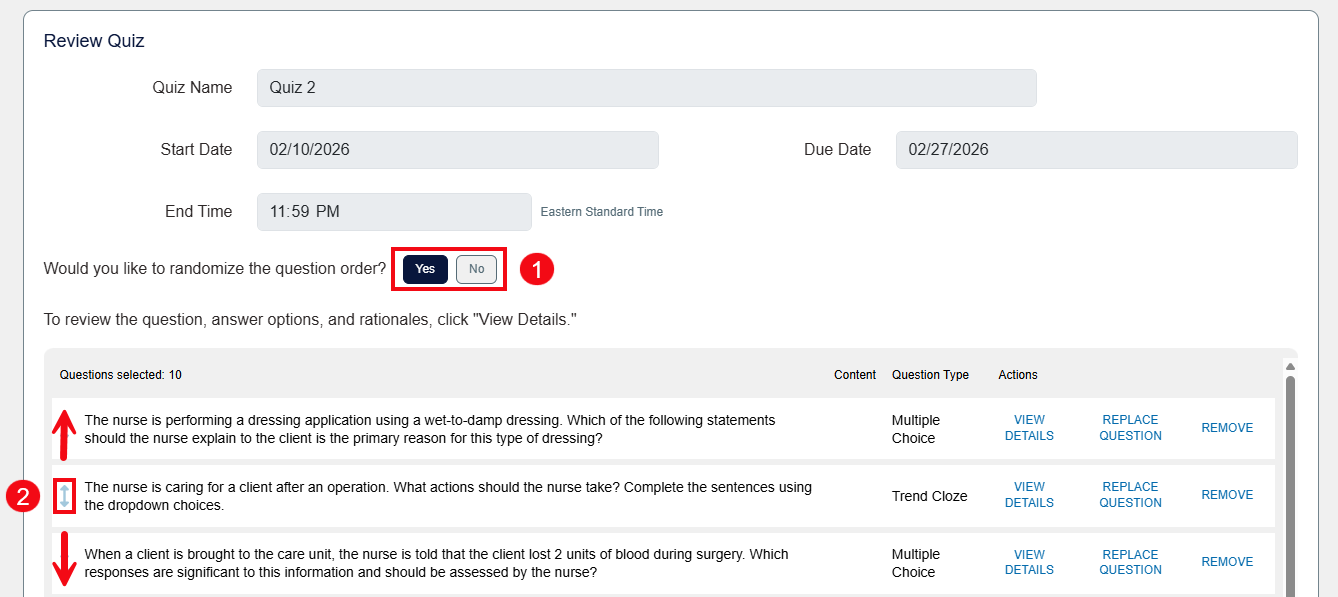
Note that the question order is randomized by default, but that you can also select No (1) if you would like questions to appear in a specific order. You can then customize the order by using the drag-and-drop arrows to the left of questions (2).
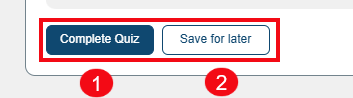
Once you're satisfied with the contents, click the Complete Quiz button to add it to the course (1). You can also click the Save for later button, if you need to finish creating your Quick Quiz at a later time (2).
Custom Assignments
Custom Assignments allow you to hand-pick each question, rather than prompting Davis 360 to generate questions for you.
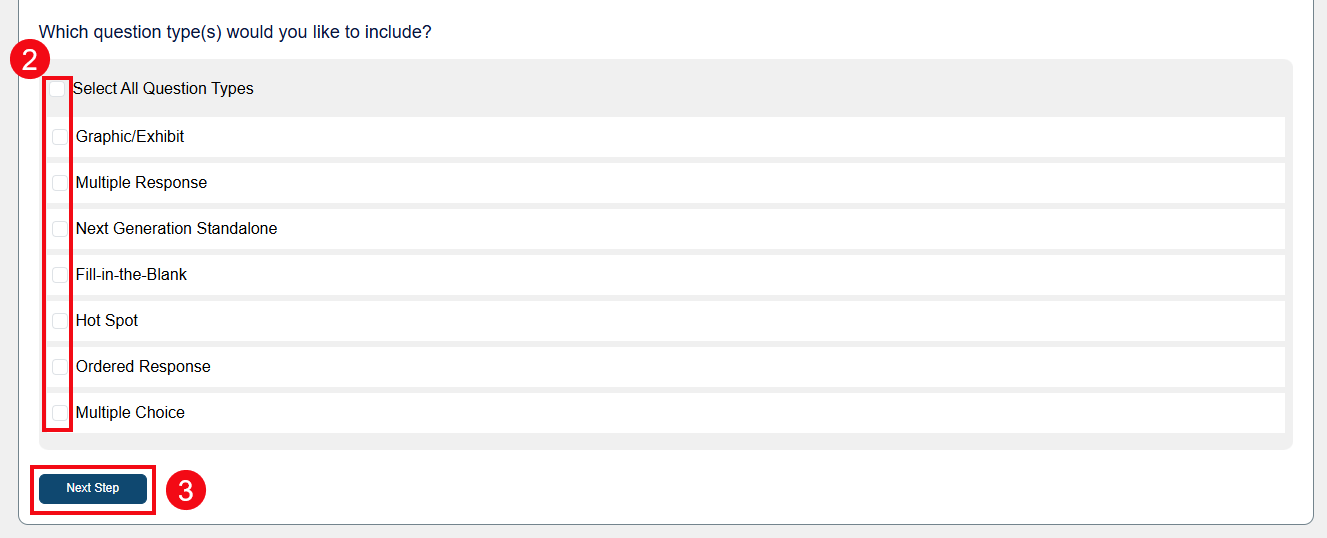
After you've added a Quiz Name, Start Date, and End Date for a Custom Assignment, you will choose the topics you want to include using the checkboxes (1). Next, select the question types you'd like to include (2). Once you've set your parameters, click the Next Step button (3).
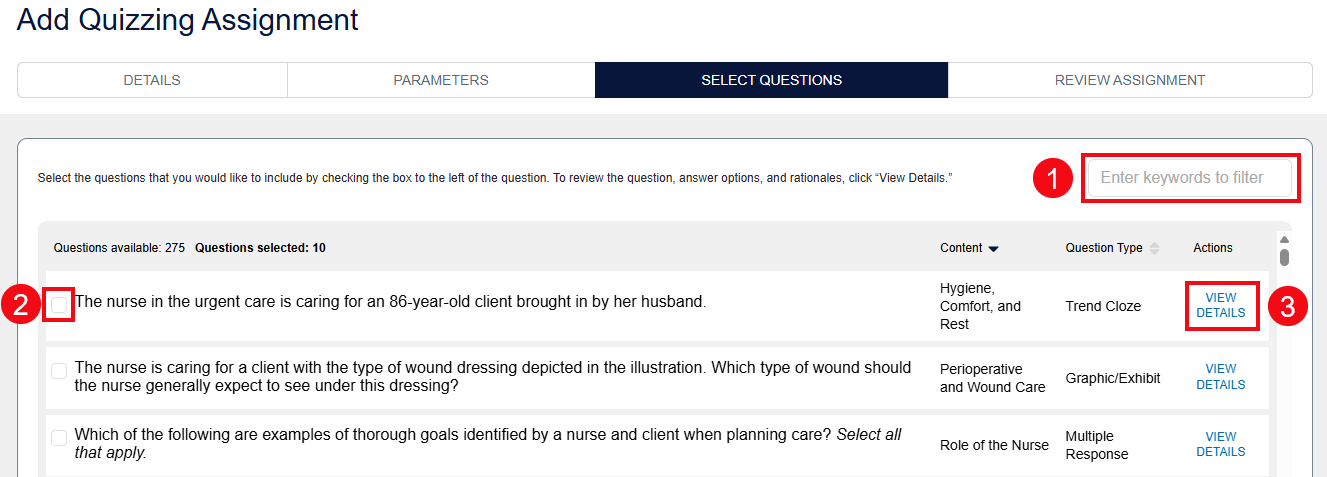
According to the topic parameters you selected, the available questions will be displayed on the Select Questions page. You can type keywords into the search bar to filter results (1), then click checkboxes to the left of questions (2) to add those questions to your Custom Assignment. When considering which questions you'll select, you can click View Details (3) to review each possible question further.
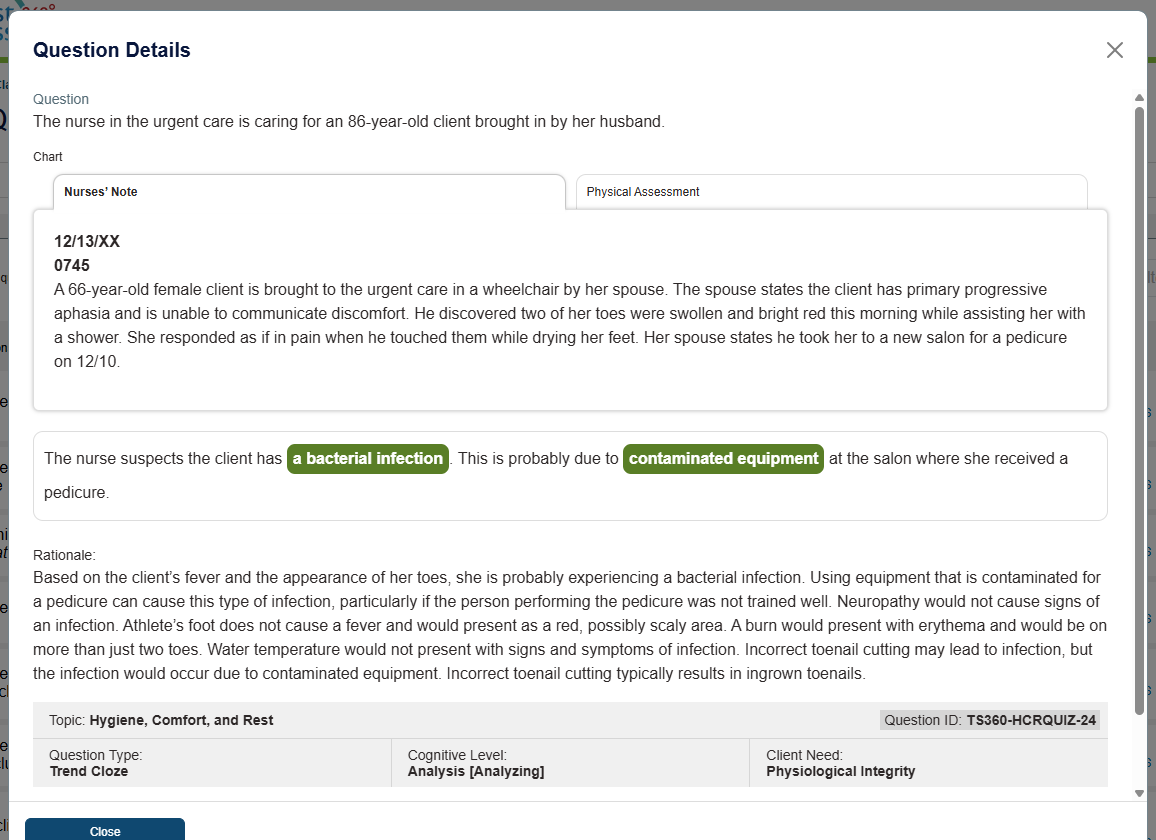
When you choose to View Details for a question, a popup containing the question's full text, answers, and rationales will appear.
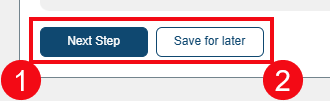
Once you've made all of your selections, click the Next Step button (1) to continue to a review of your Custom Assignment. You can also click the Save for later button (2) if you need to finish creating your Custom Assignment at a later time.
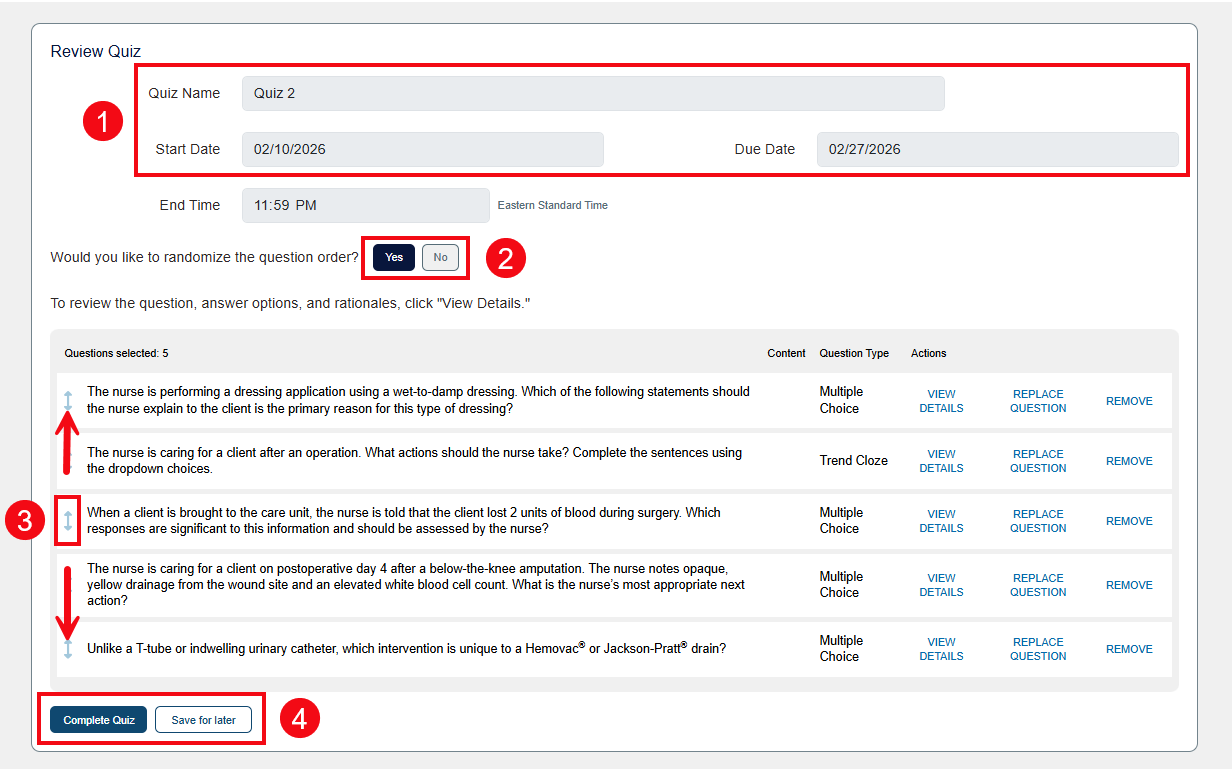
On the Review Assignment step of the Custom Assignment process, you can edit the Quiz Name, its Start Date and End Date (1), as well as the order of questions as you could previously with a Quick Quiz. You can randomize the question order (2) or manually order the questions using the arrow icons (3). You can also make any final changes to your quiz content on this page by replacing or removing questions. Once you've reviewed your selections, click the Complete Quiz to add it to your course or the Save for later button if you need to finish creating your Custom Assignment at a later time (4).
Clinical Judgement Case Study Assignments
You can add Next Gen NCLEX®-style case studies to your Test Success 360 class. These 6 question assignments use a progressive patient chart and Next Gen style questions to help students practice clinical judgement.
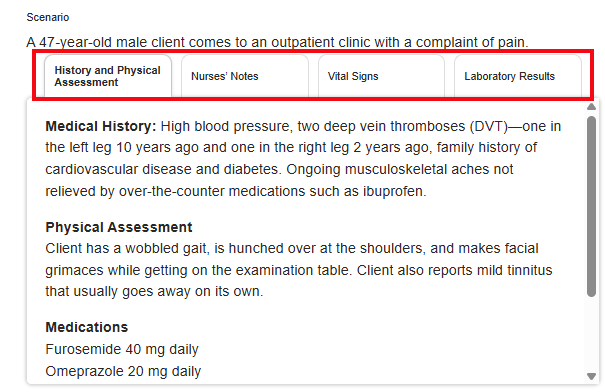
All questions are paired with an unfolding patient chart modeled on the charts used in the Next Generation NCLEX® cases. The chart includes clickable tabs for History and Physical Assessment, Nurses’ Notes, Vital Signs and Lab Results.
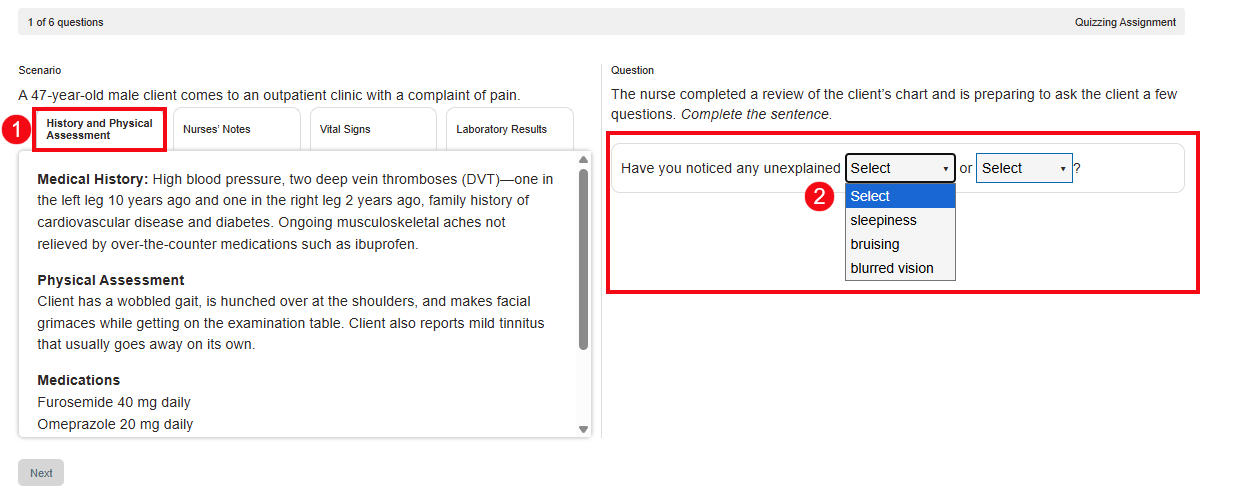
Every case opens with the History and Physical Assessment of the patient (1). Students can apply the information in the chart to complete the questions. There are five types of questions the students will see in these assignments. For example, students will encounter Cloze (drop-down) questions (2).
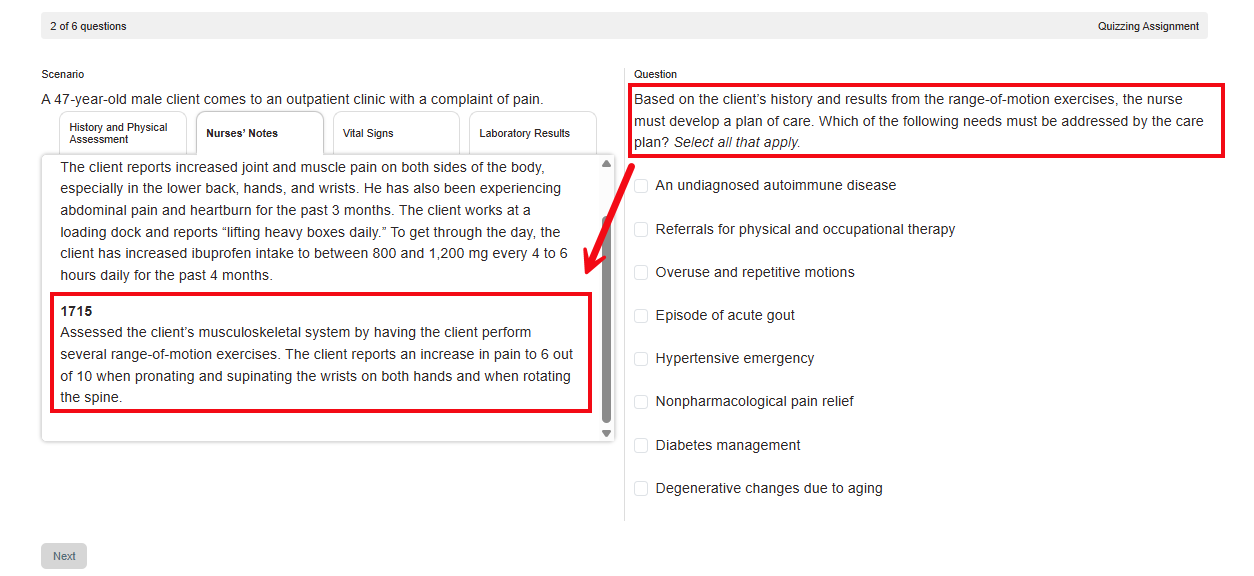
As each case progresses, the remaining three tabs of the patient chart will populate with additional data. The questions in the case may prompt the student to engage with specific tabs of the patient chart and check for updated information, as seen below. In this example, the student is directed to review the Nurse's Notes before completing an Extended Multiple Response question.
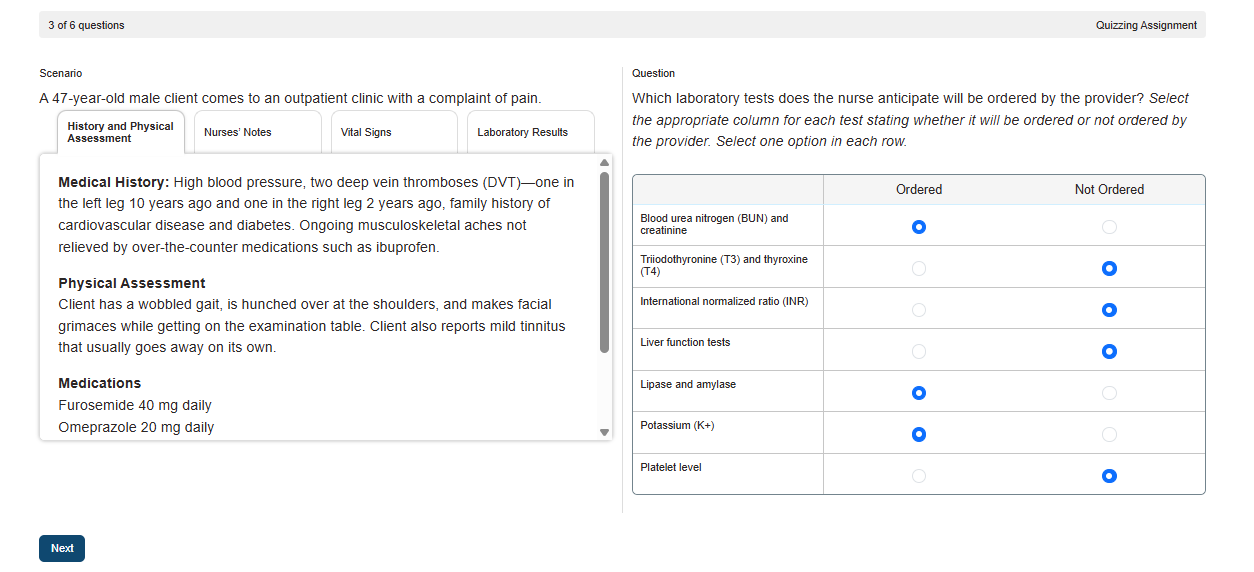
Students will also receive practice with Matrix (grid) questions intended to promote diagnostic judgment and prioritization skills. The student must choose at least one answer for every row in the matrix before they are able to proceed to the next question.
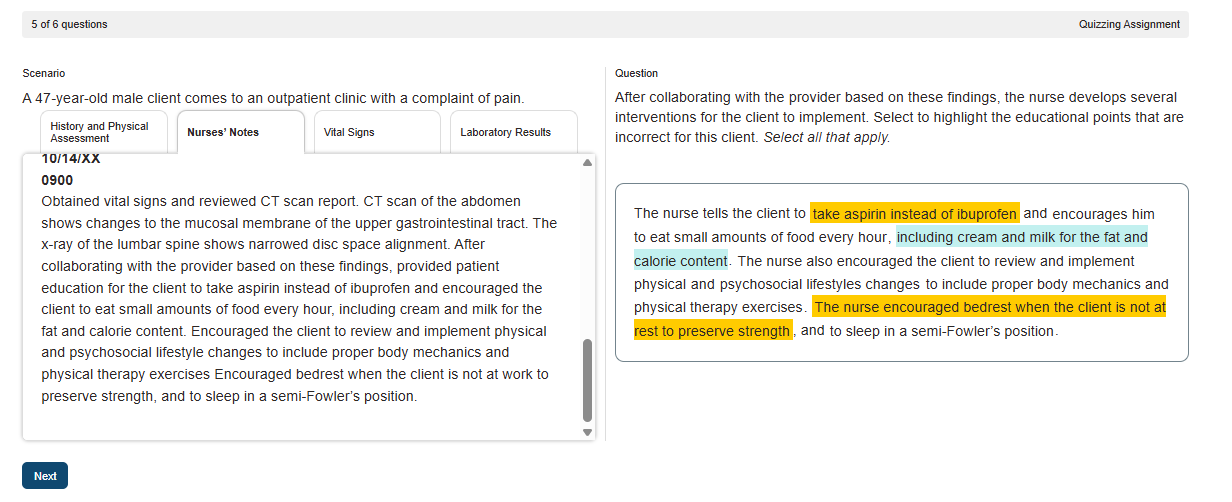
Advanced Hot Spot Questions require the student to highlight the relevant information based off the question and using the chart to guide their answers.
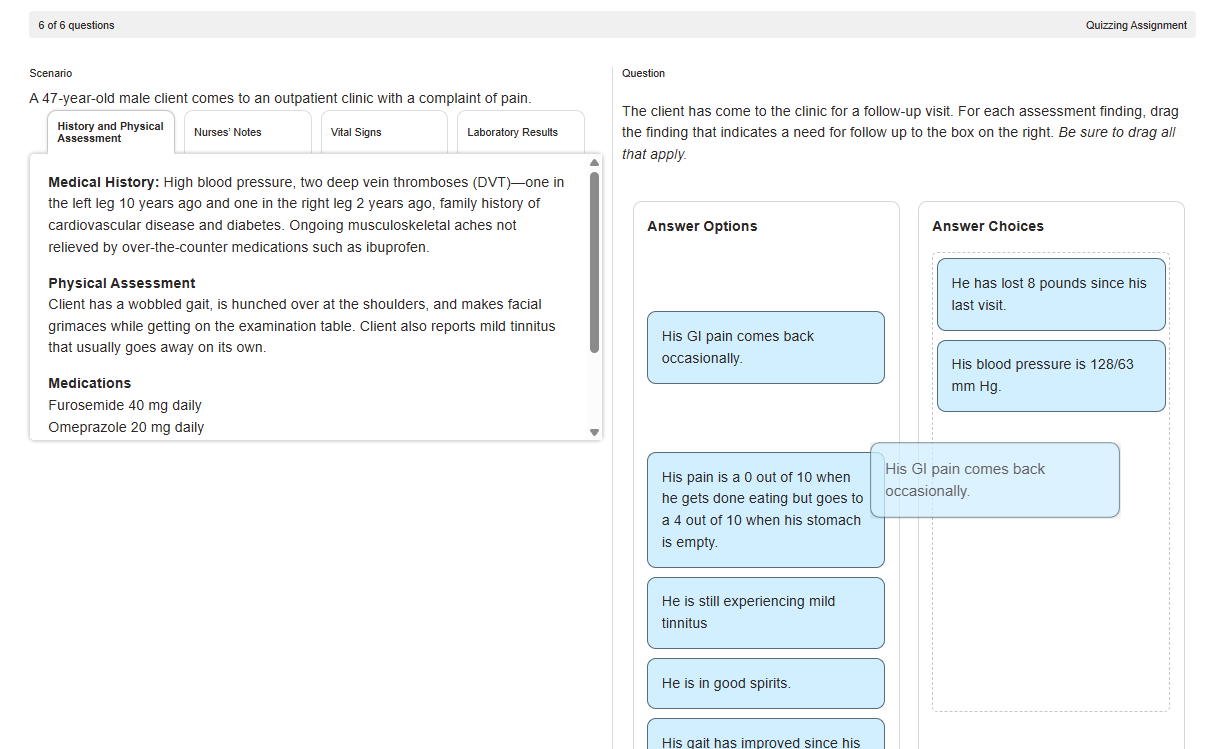
In Extended Drag and Drop questions, the student must review the possible options and drag over all applicable answers. In some cases, the student may also be asked to prioritize and order their responses.
Each case includes an additional question to provide extra practice with one of the five Next Generation question types.
Add Clinical Judgement Case Study
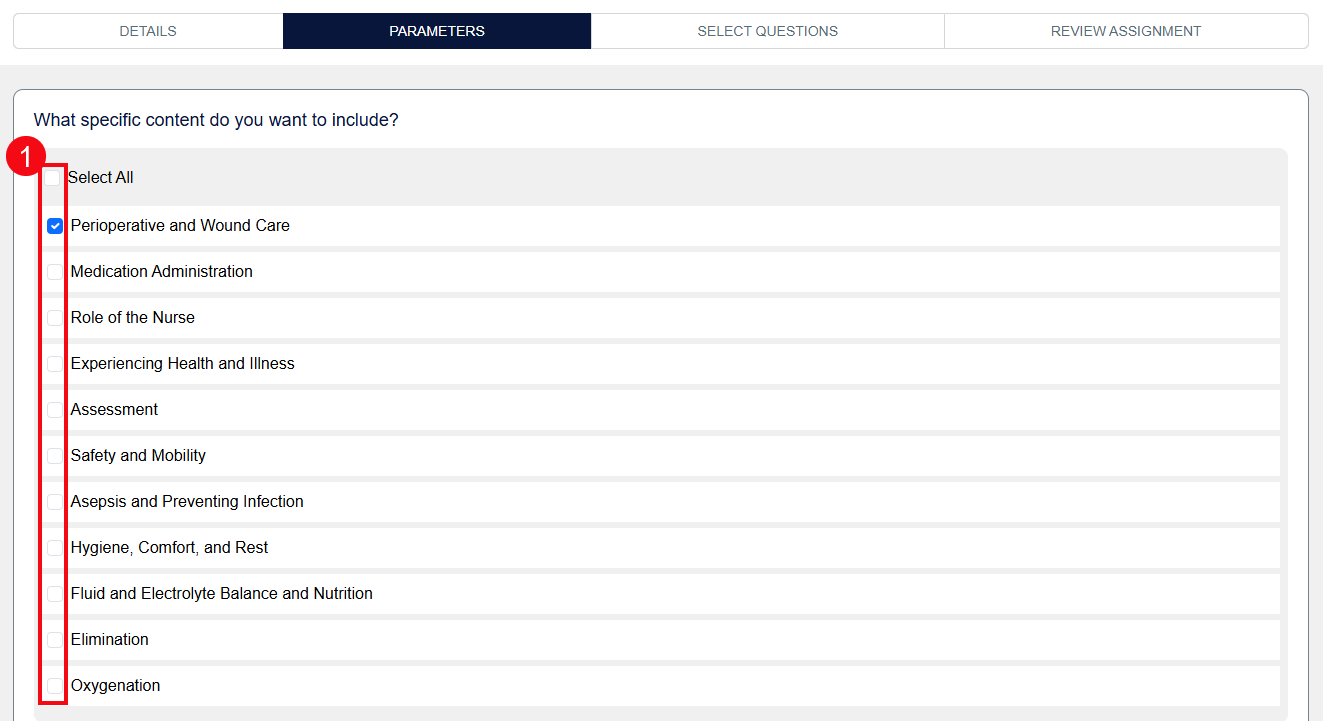
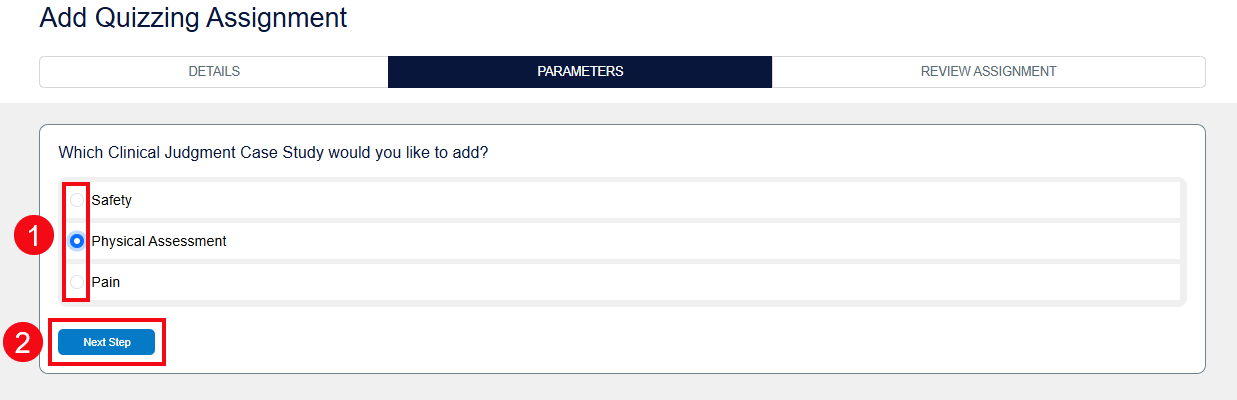
To add a Clinical Judgement Case Study, select Clinical Judgement Case Study in the Quiz Builder. After selecting Clinical Judgement Case Study, you will be taken to the Parameters page where you can choose which of the three available case studies by using the checkboxes (1). Once you have made your selection, click the Next Step button (2).
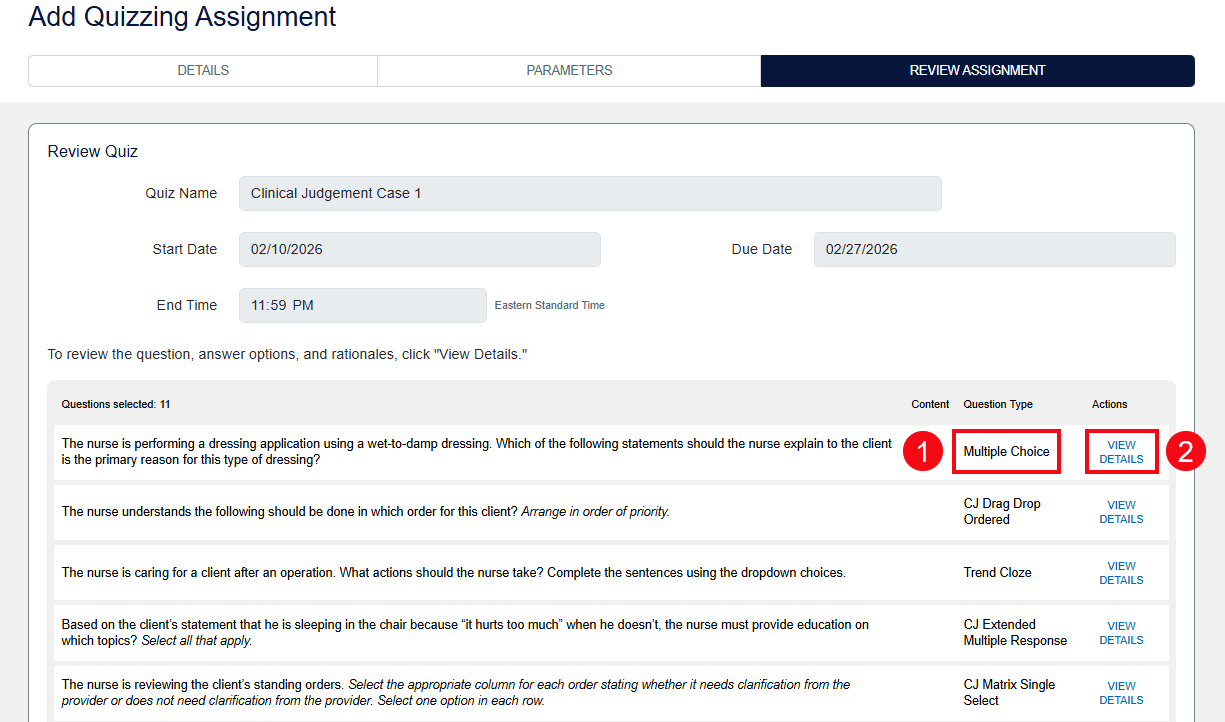
On the Review Assignment page, you will see the questions included in the assignment. In the Question Type column, you can see the question type for each question (1). To see the full question, answer and rationale, click View Details (2).
When you're finished reviewing the questions, click the Complete Quiz button to add it to the course (1). You can also click the Save for later button, if you need to finish creating the Clinical Judgement Case Study at a later time (2).

