Managing Student Enrollment from F.A. Davis on Vimeo.
View Roster
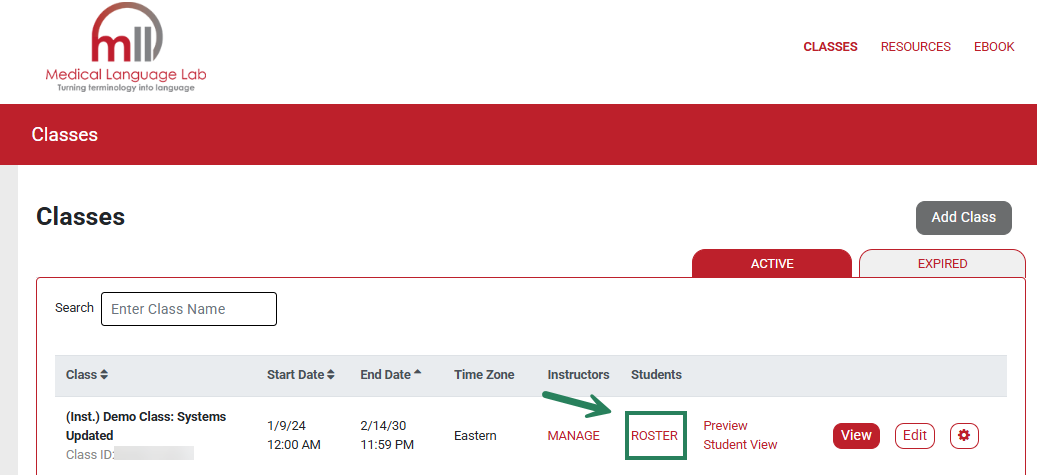
To view the list of enrolled students for a class, from the Classes page, click the Roster link.
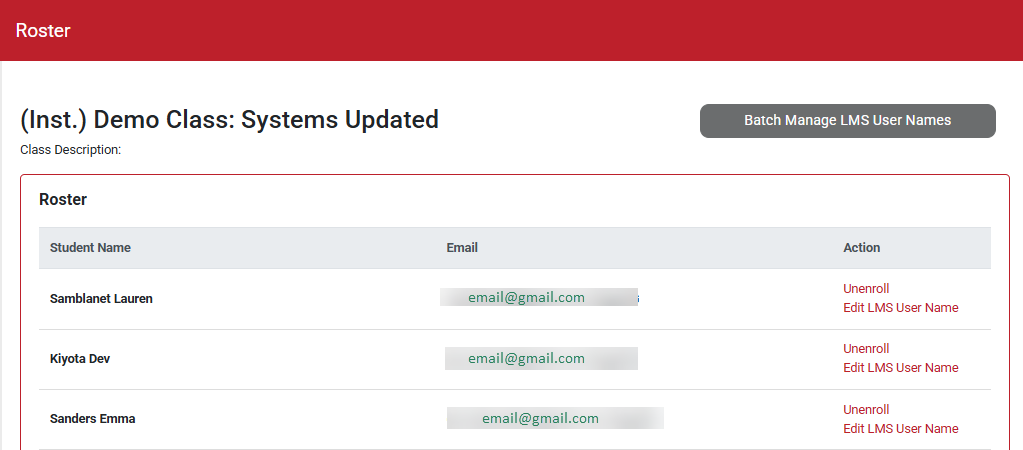
All students enrolled in your class and their e-mail addresses will display in the class Roster.
Unenroll a Student
To remove a student from the class, select the Unenroll button.
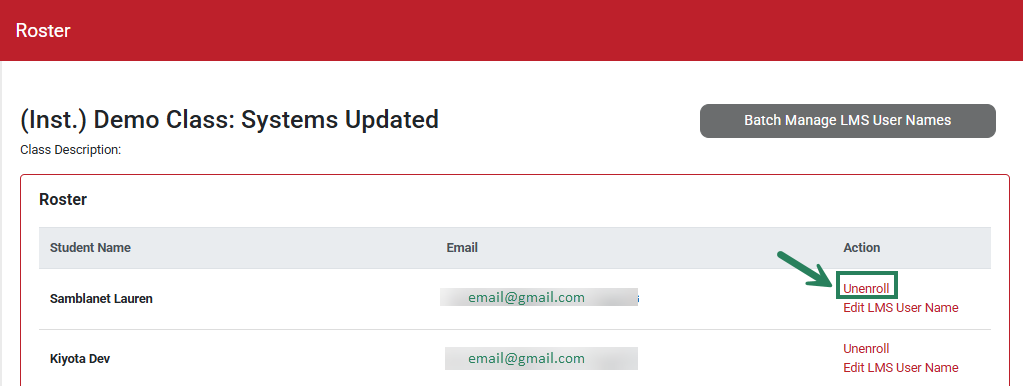
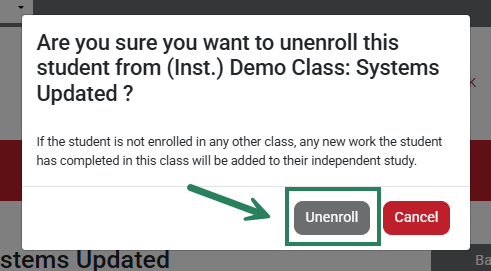
A pop-up will appear. Click the Unenroll button to confirm.
Pending Students
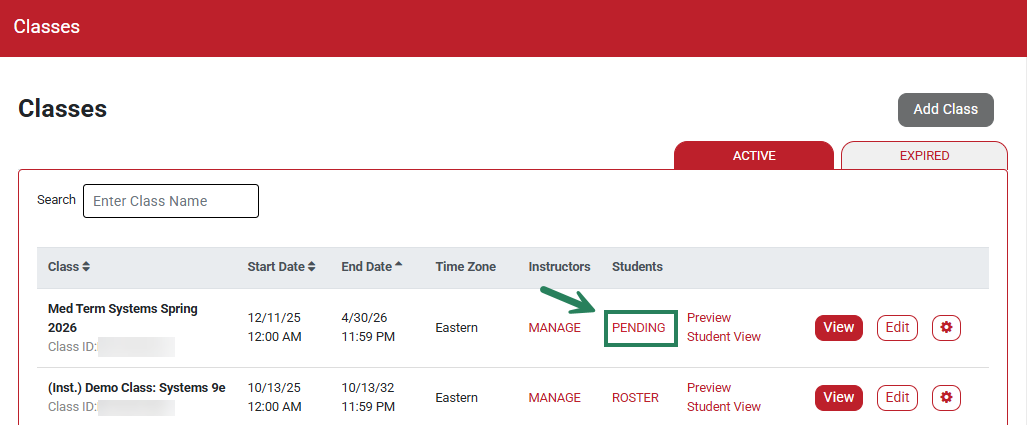
If you turned off Auto-Enroll in your class settings, students who enter your Class ID will be marked as pending until you accept or reject their enrollment. Click on Pending to manage pending enrollment requests.
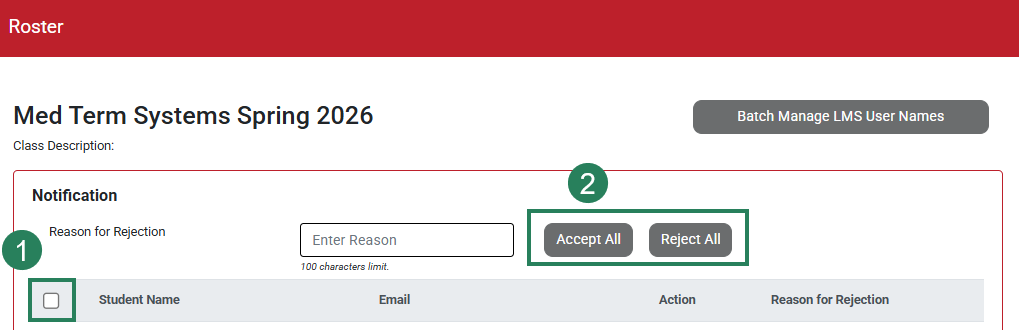
To respond to an individual student’s enrollment request, first, click the checkbox next to the student’s name (1). Next, click the Accept or Reject button (2).
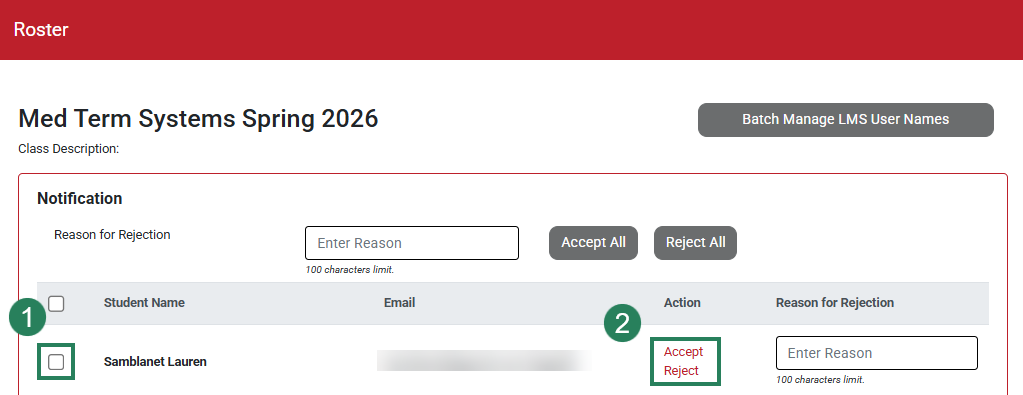
To respond to all pending students, first, click the checkbox to the left of the Student Name column (1). Next, click the Accept All or Reject All button (2).