


To access your instructor resources, go to fadavis.com and log in or create an account.
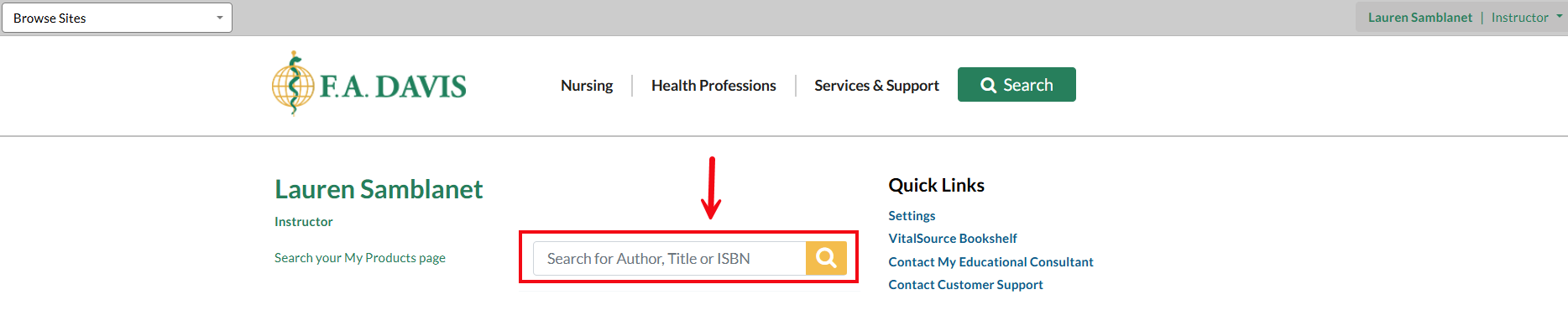
Find the book you are looking for on the page you see once you are logged in. You can use the Search My Products page box to find a title quickly.
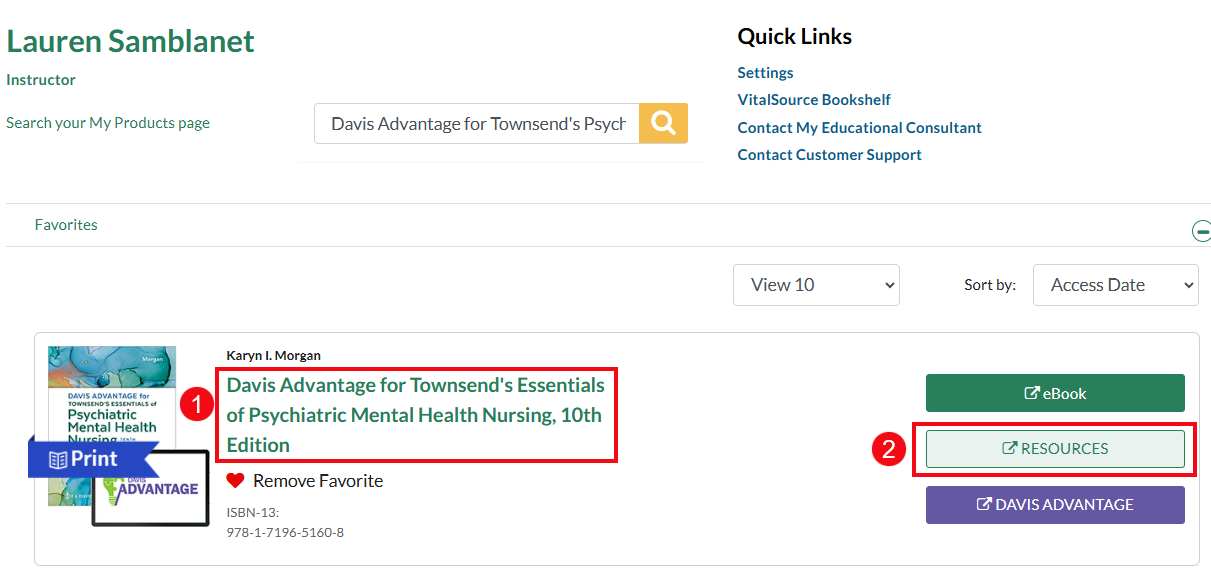
Once you've found the book, you can either click anywhere on the title of the book (1) or the Resources button (2) to access the instructor resources.
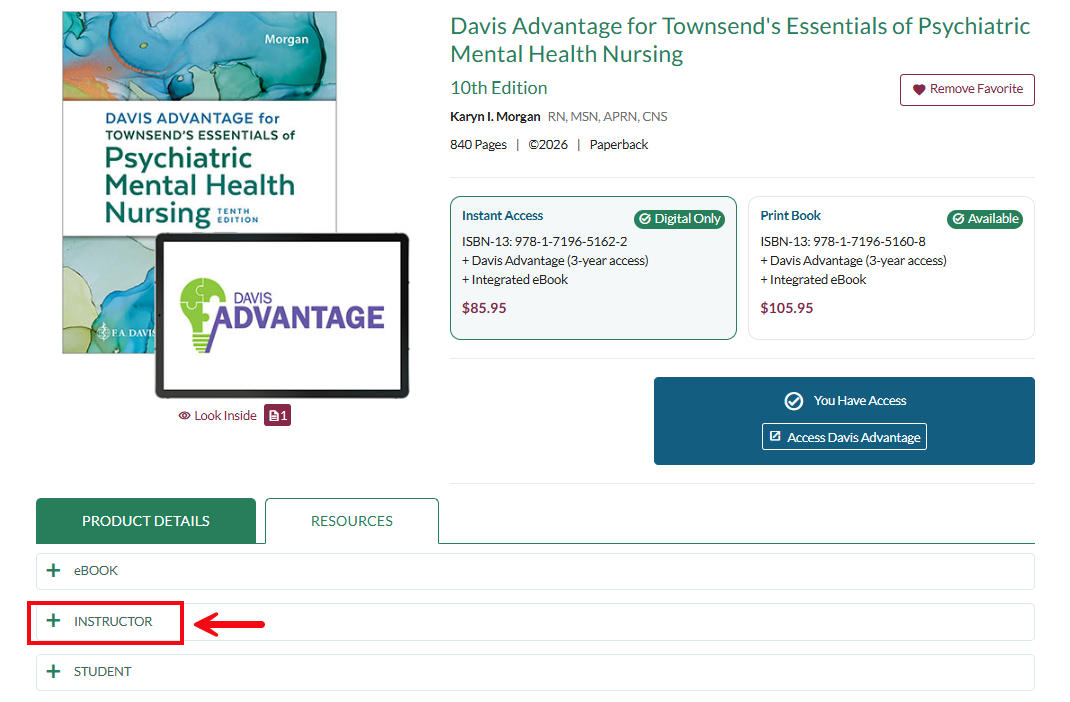
Next, click Instructor to drop down your instructor-only resources (students cannot see or access these resources).
Click the plus sign on the right to view the resources available under each section.
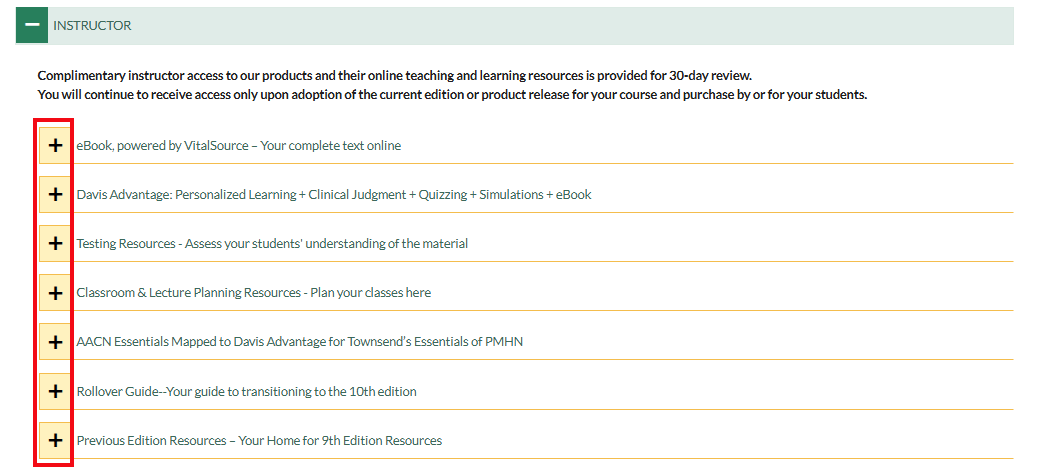
For example, click the plus sign next to Testing Resources to see all available testing resources for the book.

Click the plus sign next to any item to expand all the resources.

Click on the arrow or the name of the resource to open it.

